📚 3. AIOStreams [Find Streams]
AIOStreams is the stream aggregation engine in this setup. It combines multiple scraping sources into one consistent results list, and lets you apply filtering, sorting, and formatting so the best links appear first.
Select an AIOStreams instance from this or this link (they both show the same instances and their online status, it’s just two different sources), or go directly to Midnight’s or Yeb’s/Nhyira instance (two of the most popular ones) and:
WARNING:
- If you want to understand more what an instance means, go to 🔰 Beginner Concepts.
- You can choose an instance that says Nightly, and they work great, but they are instances that update very frequently and thus the steps described in this guide may not be up to date to match them. If you’re a total beginner, you’re probably better off with an instance that doesn’t say Nightly.
- DON’T choose the ElfHosted instance because Torrentio doesn’t work there.
- Choose one of the instances and stick with it, you will store your configuration here, and if you change to the other instance, you’ll need to transfer your configuration because it’s not automatically transferred
- You can keep the monitoring links above for later to check the instance online status, if it happens that it’s not working and might be temporarily down.
- Select “Advanced” on the welcome screen if it shows up.
- Copy this link (right-click and “Copy link address”).
-
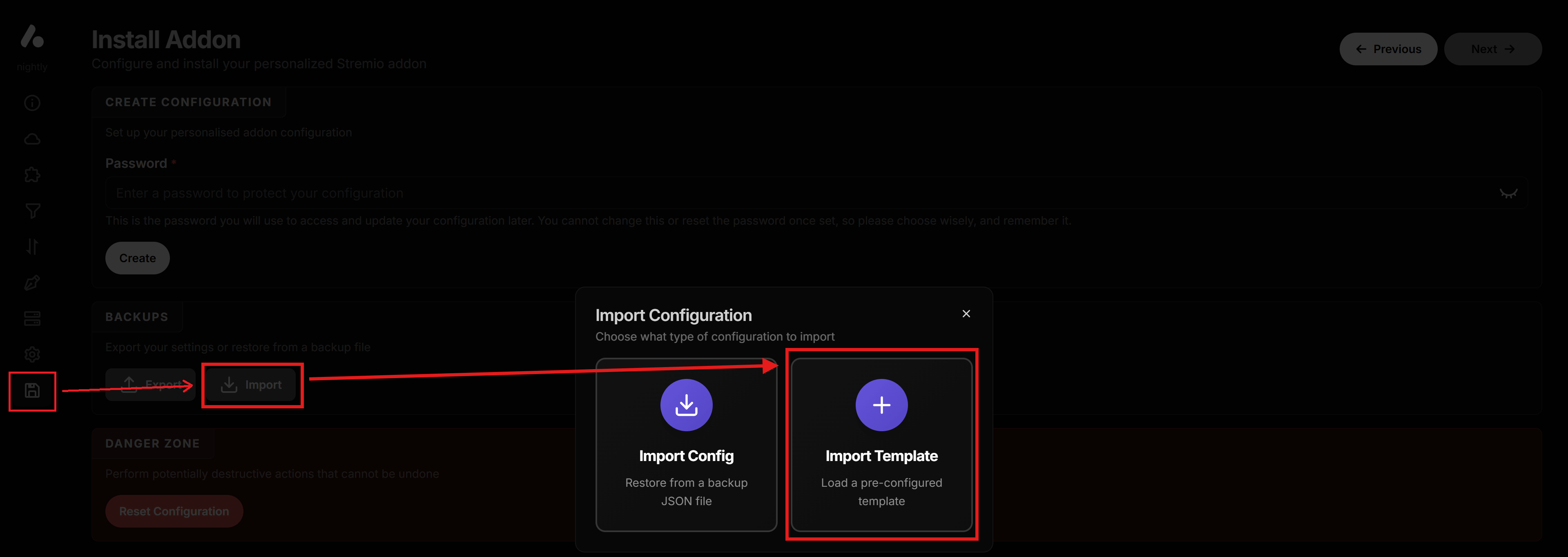
Go to the “Save & Install” tab on AIOStreams (sidebar menu on the left), click “Import”, “Import Template”, paste the link you copied and click on “Go”.
-
Click “Use this Template Now”.

-
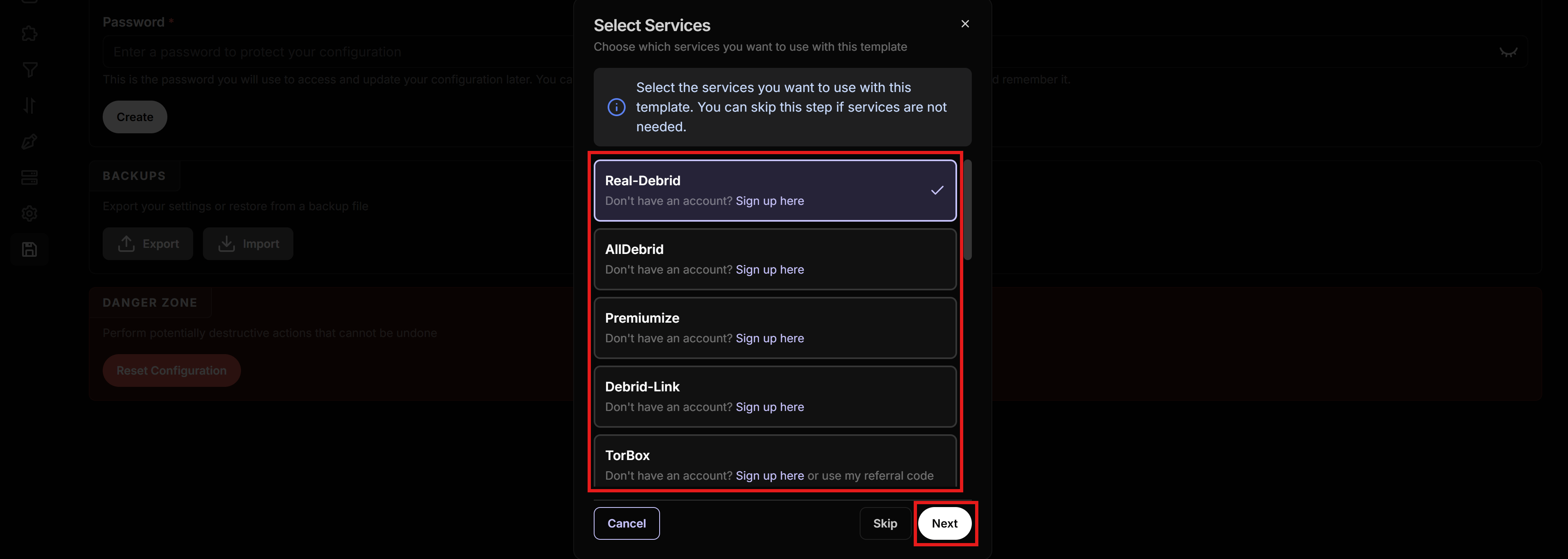
On the “Select Services” page that is shown, enable the services you want to use and click “Next”. If you’re not using any services and want to proceed with the P2P/HTTP setup, click “Skip”.
- On the “Template Options” page, you’ll be able to personalize the configuration to match your preferences:
- 🖋️ Formatter Style: Here you can choose the formatting of the stream information view.
- ▶︎ Flat Monochrome Icons has a cleaner look based on minimalistic white icons.
- 🎬 Colorful Icons contains a colored version with more graphical icons.
- 🚫 None retains your existing formatter (formatter will not be replaced, if you already have one configured).
- 🗣️ Language Options:
- 🔊 Preferred Languages: Here you can select your preferred stream languages that you want to be sorted first when the streaming options are shown. Original, Dual Audio, Multi, Dubbed, and Unknown are automatically appended after your selections.
- 🔒 Show Only Preferred Languages: You can enable this option (recommended) to show only streams in the selected languages above (including Original, Dual Audio, Multi, Dubbed, and Unknown). This can help reduce clutter by filtering out streams in languages you don’t prefer.
- 💬 Preferred Subtitles: Here you can select the subtitles that should be loaded when opening a stream.
- 🧩 Addon Options:
- 🗡️ Anime Addons (not available without Debrid): If enabled, additional anime-specific addons (SeaDex, AnimeTosho) will be installed.
- 🧊 Debridio (not available without Debrid): If enabled, Debridio will be added. You will need your Debridio API key from your account settings. Leave it disabled if you don’t know what this is.
- 🌐 HTTP Addons: Select if you want addons for HTTP streams to be installed. These addons rely on free online hosters and generally have less reliable sources and speeds, but can be good backup options if you don’t or can’t use Debrid and/or P2P. You can select:
- 🚫 None to not include any HTTP addons at all.
- ➕ Install Additional HTTP Addons to install them in addition to the Debrid/P2P addons for extra results.
- 🔒 Install Only HTTP Addons to not include any Debrid/P2P addons but only use HTTP addons. CHOOSE THIS IF P2P IS AN ISSUE IN YOUR COUNTRY AND YOU’RE NOT USING DEBRID. If you only use these addons, it might be a good idea to increase the global timeout below, since they might sometimes take longer to return results. Do not select this option if you ARE using a Debrid.
- ⏱️ Global Timeout: Enter the time in ms that you’re willing to wait for results before your scraper addons timeout. You can set it a bit higher if you have issues getting enough results or you want to make sure to get as many results as possible.
- ↕️ Sorting Options:
- 🚩️ Language Priority: This option can give priority to streams in your preferred languages by moving it up the sorting order. If you struggle to see your preferred languages in the results, even after adding it to the Preferred Languages list, try increasing the priority here. May rank lower-quality streams higher if your preferred languages are uncommon among the results, so use with caution.
- 🌱 Seeders Priority (only for P2P): Change this if you want highest seeders to be prioritized more on the sorting order, even if they have lower Resolution/Quality/SEL Scores. In most cases, low seeders will have already been filtered out by the internal filtering (SEL).
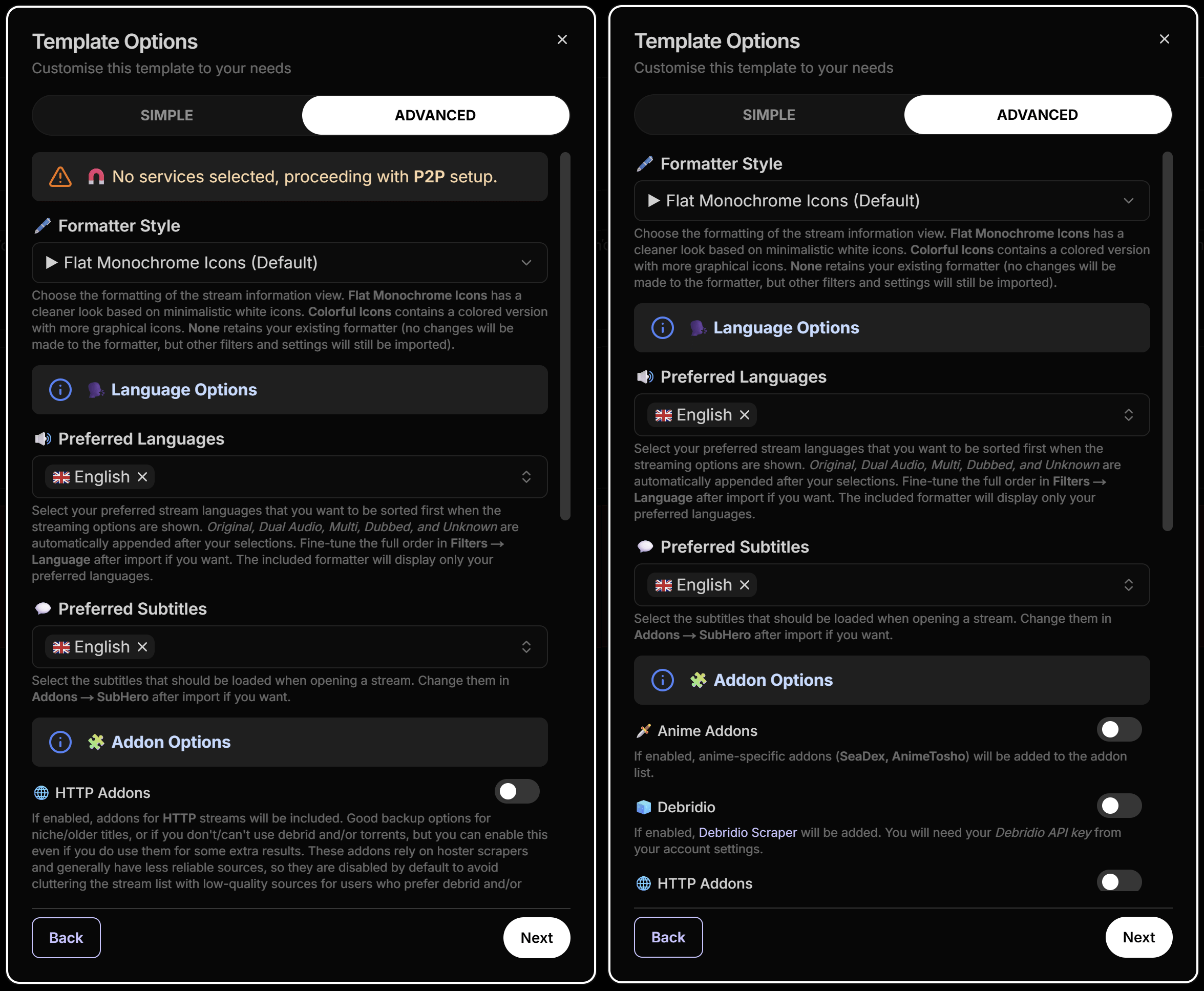
- 🖋️ Formatter Style: Here you can choose the formatting of the stream information view.
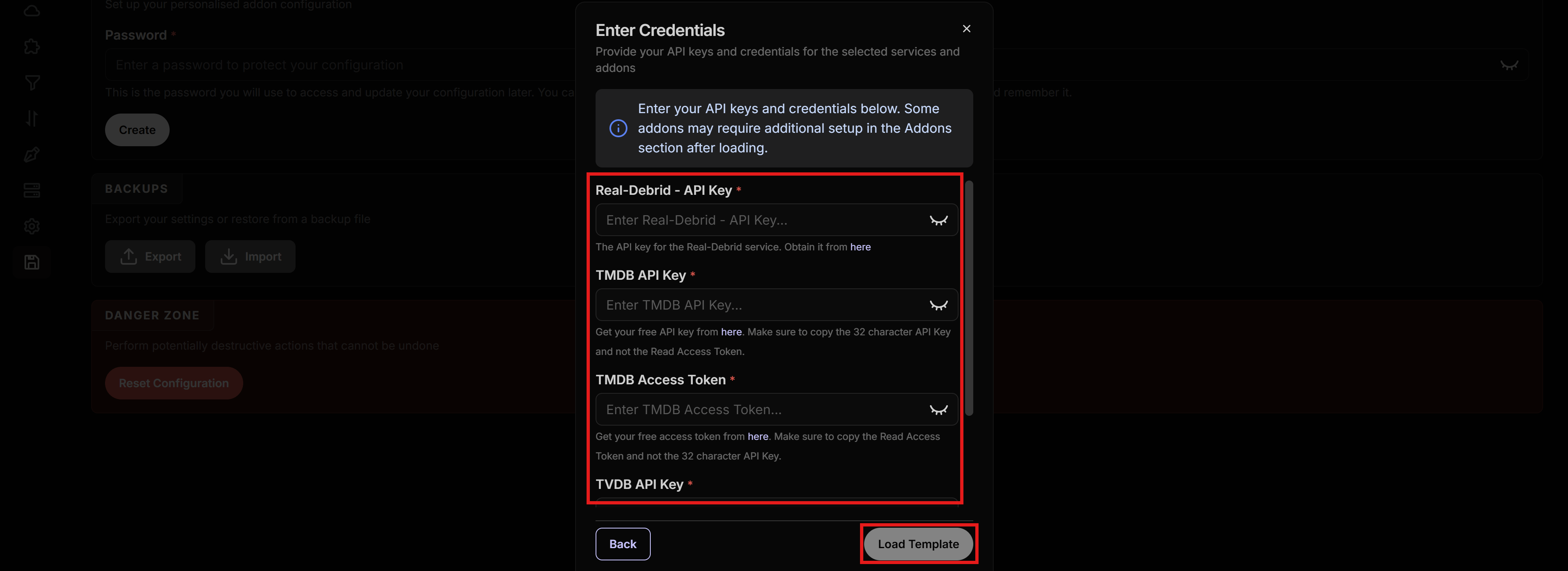
- On the “Enter Credentials” page, enter all API keys you prepared earlier.
- For RPDB, unless you have an account and a paid subscription with your own API key, you can also use the free standard API Key “t0-free-rpdb” directly.
-
Click on “Load Template”.
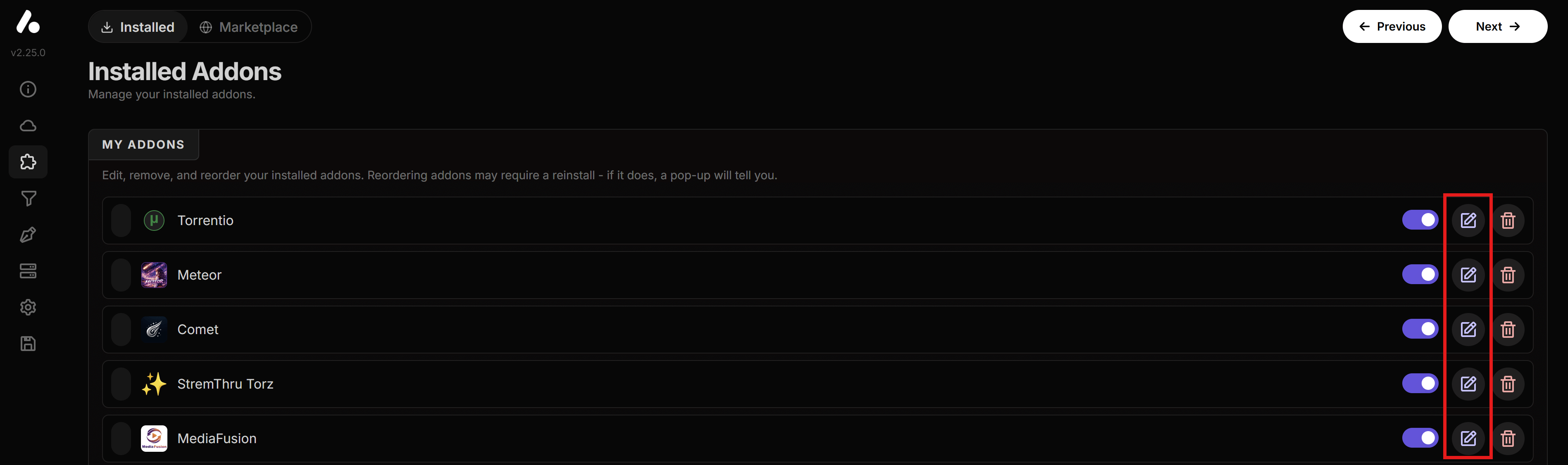
- Optional: At this point AIOStreams is ready, but you can keep configuring it however you like. For example, if you want to further configure the scrapers or subtitle languages, you can go to the “Installed Addons” tab.
- You can configure each of them with the Pencil button on the right if needed.
- Depending on what you selected during the template options (whether you used a Debrid service, P2P directly, or can’t use either), different addons got installed for you. Here’s a summary:
- TorBox, Torrentio, Meteor, Comet, StremThru, MediaFusion, Knaben, PeerFlix are the main scrapers finding the sources.
- SeaDex and AnimeTosho are for Anime and are available only when using a Debrid service.
- Sootio, Nuvio Streams, WebStreamr, HD Hub are HTTP scrapers that provide direct web streams. You can use these if you don’t/can’t use Debrid and/or torrents. They may be more limited in quality and availability, but are a good alternative. You can also disable them if you use a Debrid, you don’t normally need them.
- Debridio and Watchtower are additional scrapers for those of you who use the Debridio service.
- Library is an addon that can search through your own Debrid library (if you e.g. download something manually in Debrid).
- OpenSubtitles V3 Pro is for the subtitles, you can edit the languages and any other subtitle preferences here.
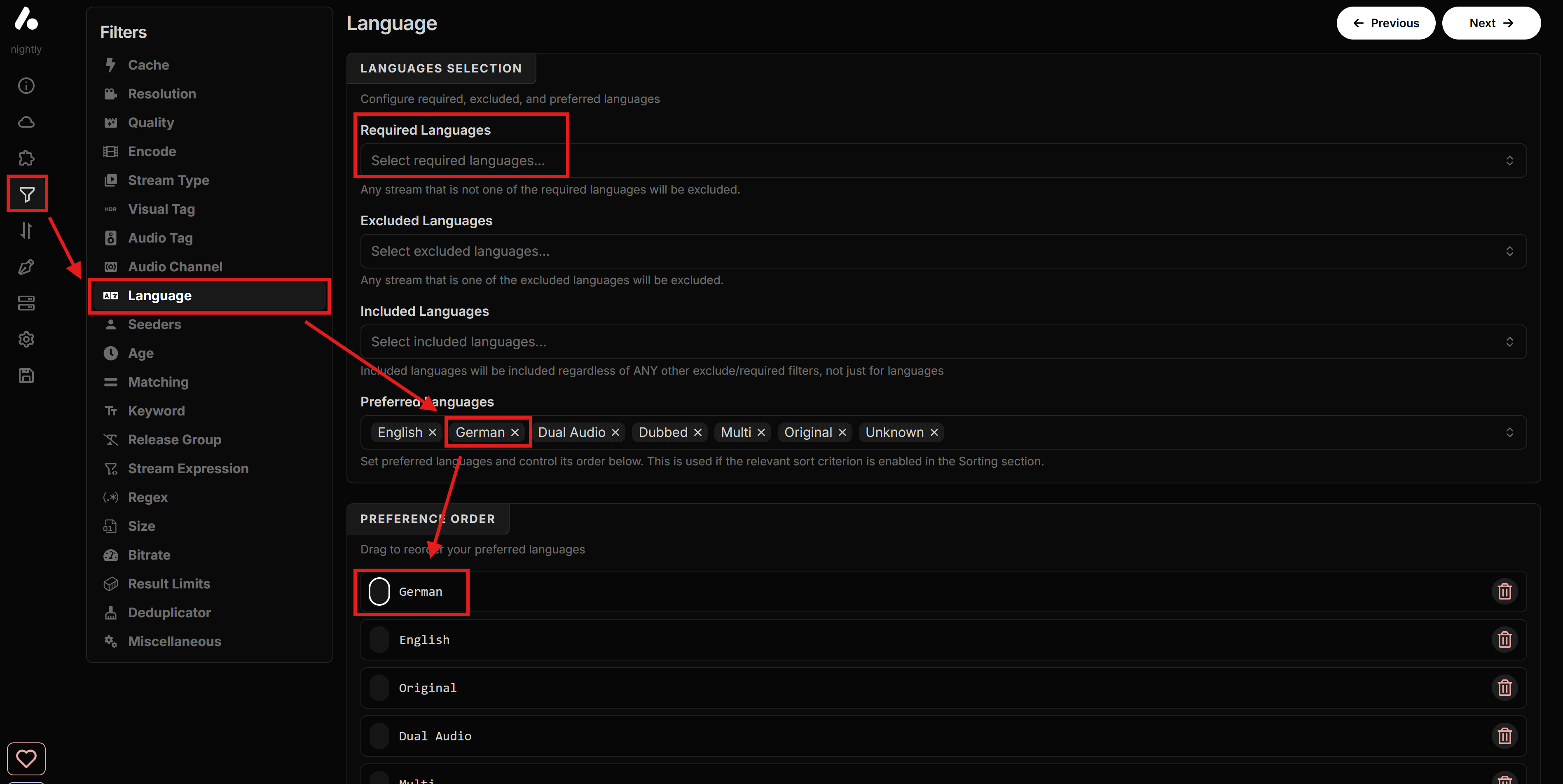
- If you want to fine-tune how languages shound show on the results list, go to Filters tab, then Language, and add/remove your languages to the Preferred Languages list, and arrange them in the Preference Order list (shown in the picture with German language as an example). You can also add the languages in the Required Languages if you want to ONLY show streams in that language, but keep in mind that streams that might have no language tags at all or tagged as “multi” will be filtered out.
-
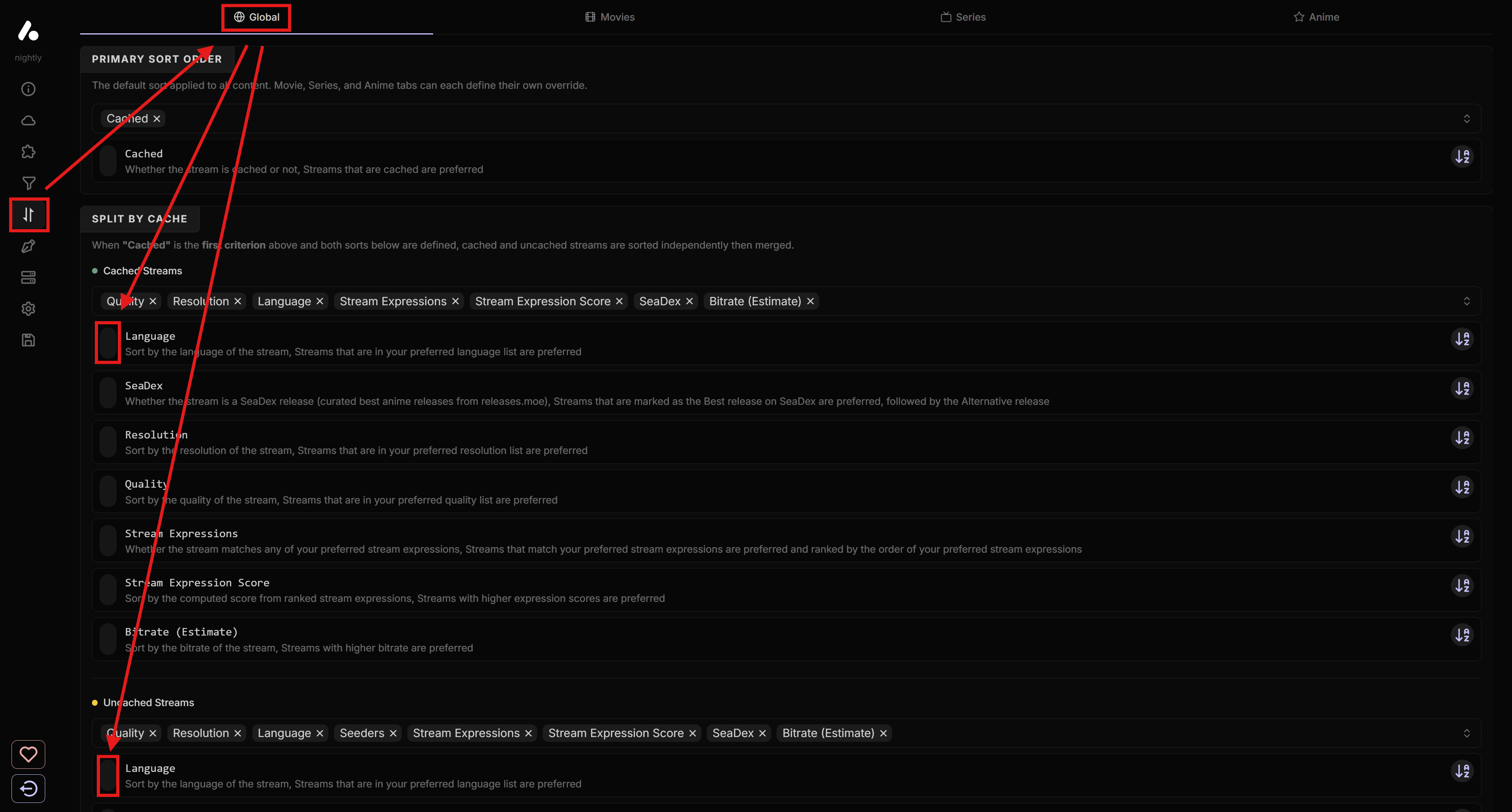
If you want to take it a step further and totally prioritize your language, even before Quality and Resolution, then go to the Sorting tab, make sure you’re in the Global tab, and on the Split by Cache section, move Language to the top or wherever you want to have it for both the Cached Streams and Uncached Streams lists.
- Go to the “Save & Install” tab, enter a password on the “Create Configuration” section, and click “Create”.
- ALWAYS SAVE IN THIS TAB EVERY TIME YOU MAKE CHANGES LATER.
- Copy and store the UUID that is shown and the Password you set for later to access the configuration again. This is basically your AIOStreams account.
- If you get an error when saving that says “Failed to fetch manifest…” and/or “502 - Bad Gateway”, it means the addons mentioned there are temporarily offline. Go to Addons → Installed Addons, disable the problematic addons mentioned, and proceed with saving. Go back at a later time to re-enable the addons and save again.
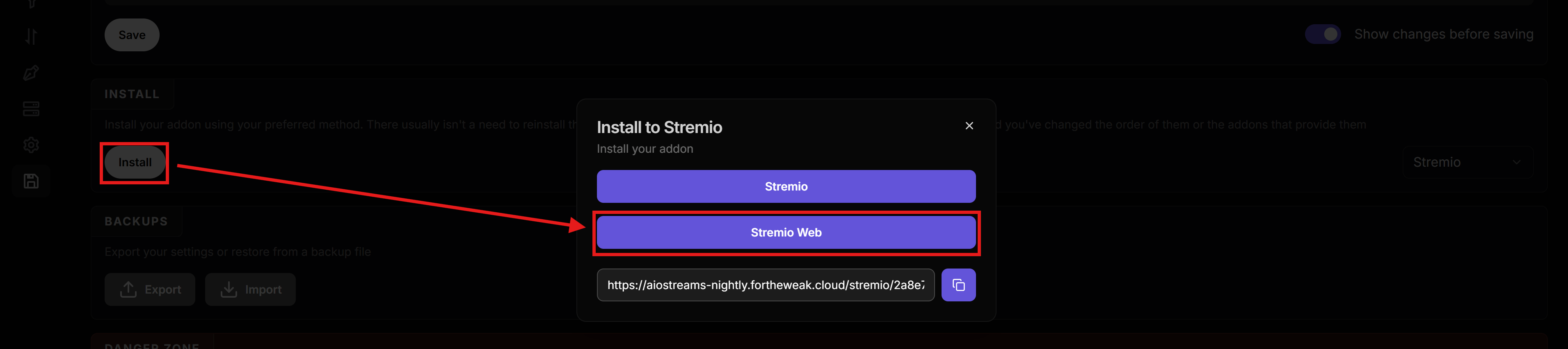
- Click “Install” and install the addon on Stremio Web (recommended, but you can also install on Stremio app if you want, but make sure you’re signed in to your Stremio account wherever you install it).
NOTES FOR LATER:
- If you use a Debrid service, and are in a country where you can’t torrent, be careful to not open any links with the 🧲 icon. They should normally never appear if you have a Debrid configured, but just making sure you know.
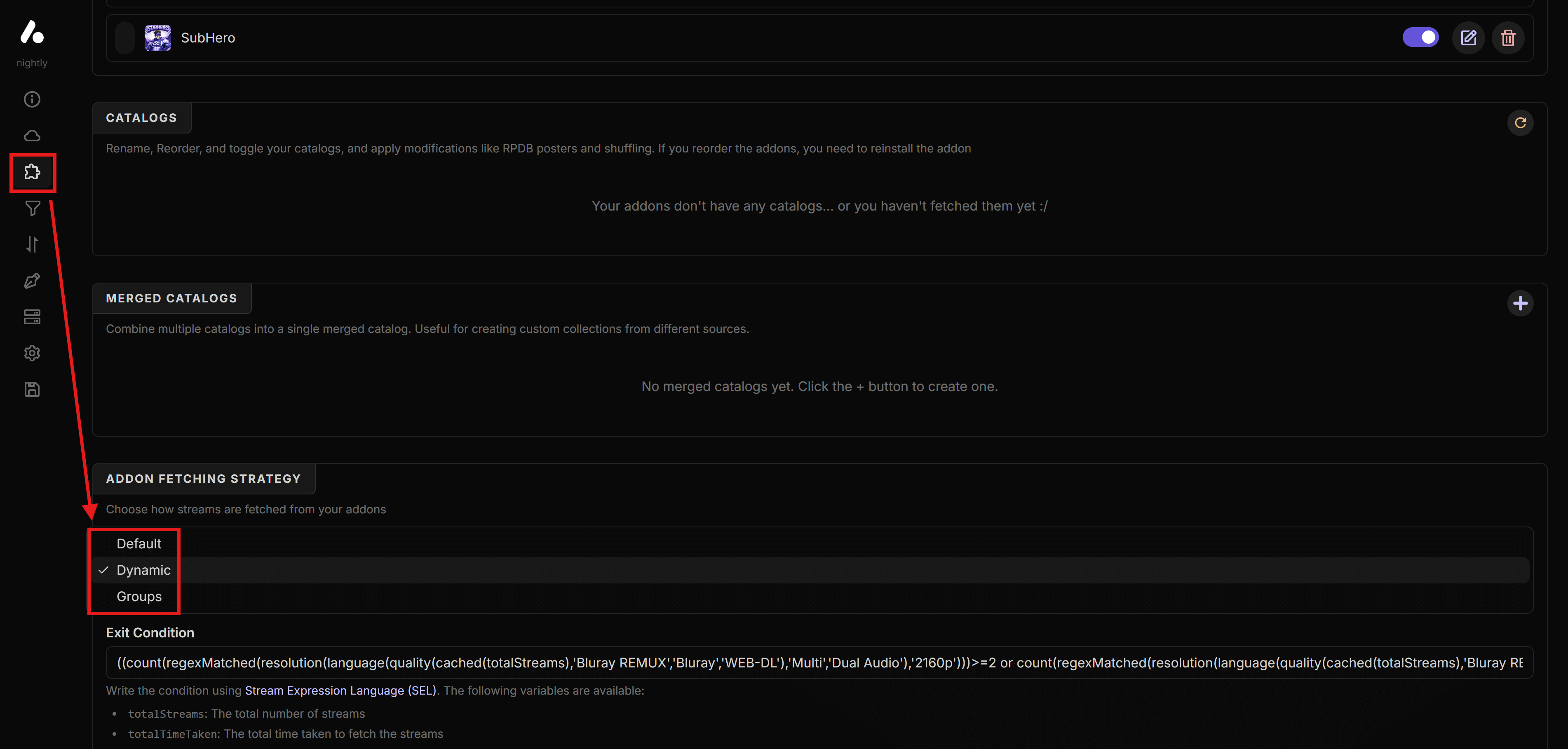
- If you see that you are getting results too slowly, try changing the fetching strategy. Go to Addons, scroll down to Addon Fetching Strategy. and select Dynamic. There should already be an exit condition pre-filled, which you can leave as is, and save the configuration. However, keep in mind that this might leave out relevant results, so try it yourself. On the other hand, if you feel you’re not getting enough good results, do the opposite and select Default instead.
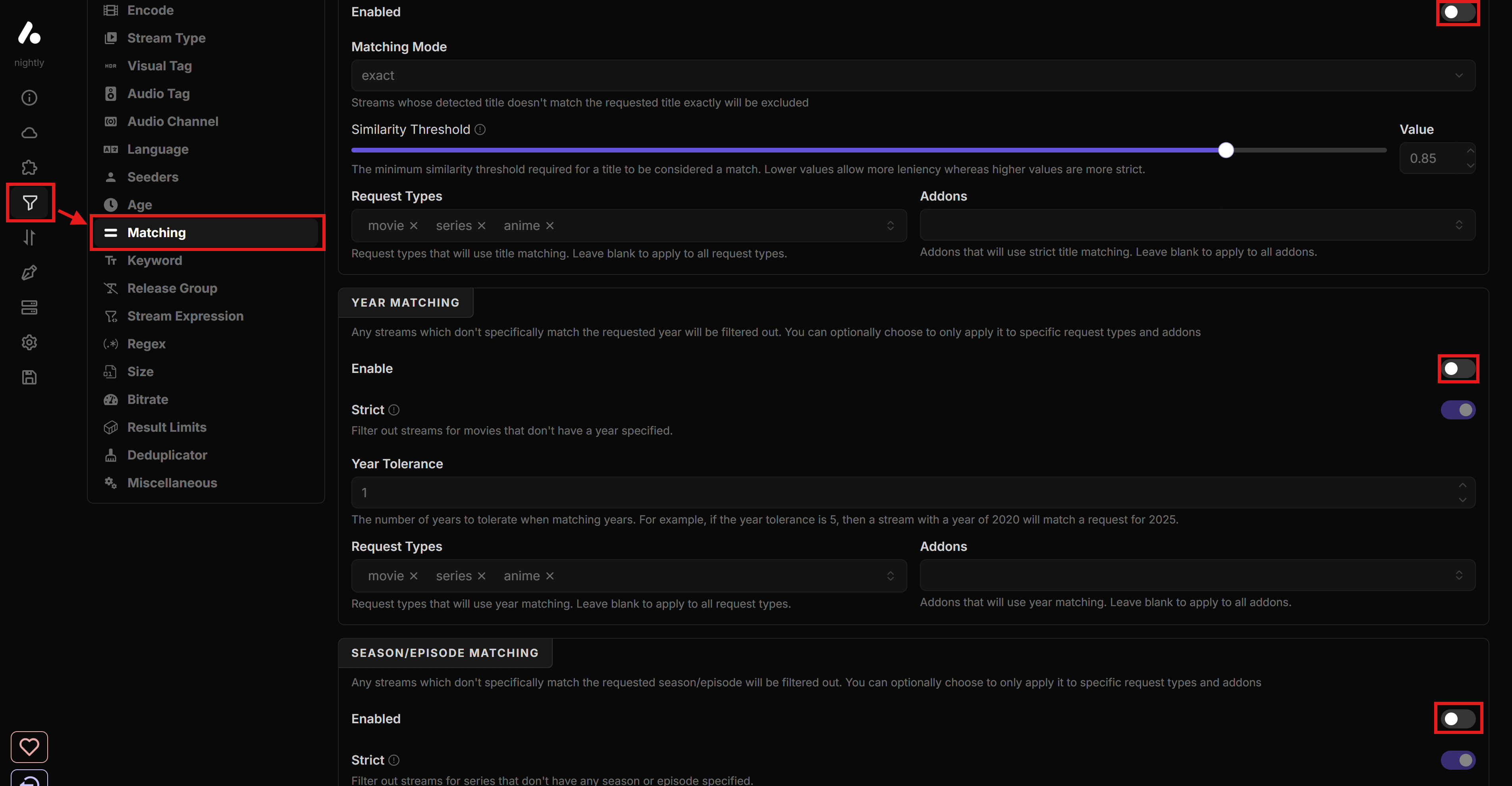
- If you prefer results for a language other than English, and you are not happy with the results you’re getting, try disabling matching. Go to Filters, then Matching, and switch off the Enable toggle in all three sections (Title Matching, Year Matching, Season/Episode Matching).
- AIOStreams is a very powerful tool offering a lot of options. Although the template provided here for it should be more than enough for all kinds of normal usage, if you are interested in tinkering with it and customizing each detail, you can check out this guide directly from the developer, Viren, which is also very comprehensive and documents all configuration options for AIOStreams.