
🔎 4. AIOMetadata [Metadata & Catalogs]
AIOMetadata is the metadata and catalogs layer. It improves discovery by powering richer catalogs, search behavior, and integrations, so browsing titles in Stremio feels more complete and organized.
Select an AIOMetadata instance from this or this link (they both show the same instances and their online status, it’s just two different sources), or go directly to Viren’s or Midnight’s instance (two of the most popular ones) and:
WARNING:
- If you want to understand more what an instance means, go to 🔰 Beginner Concepts.
- Choose one of the instances and stick with it, you will store your configuration here, and if you change to the other instance, you’ll need to transfer your configuration because it’s not automatically transferred.
- You can keep the monitoring links above for later to check the instance online status, if it happens that it’s not working and might be temporarily down.
- Download my configuration file here (right-click, “Save As”, and save it as
.json, not.txt). -
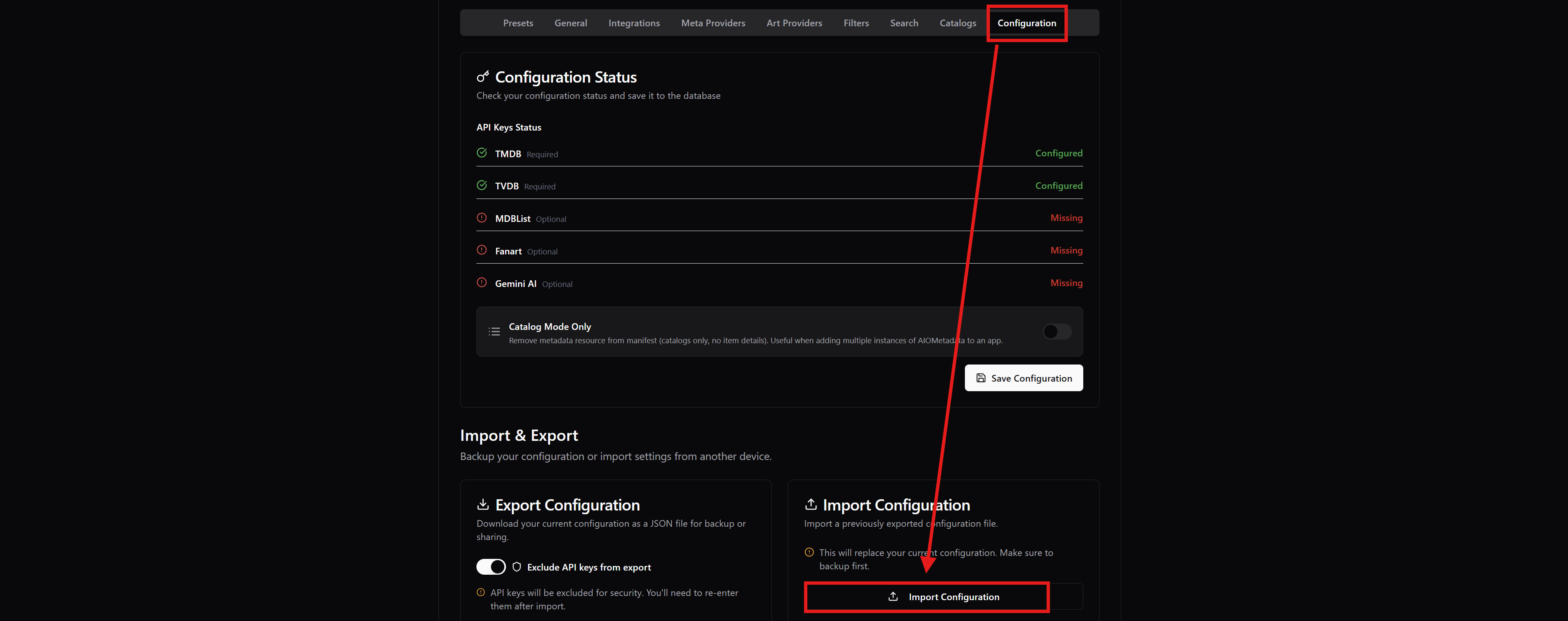
Go to the “Configuration” tab, click on “Import Configuration”, and load my configuration file.
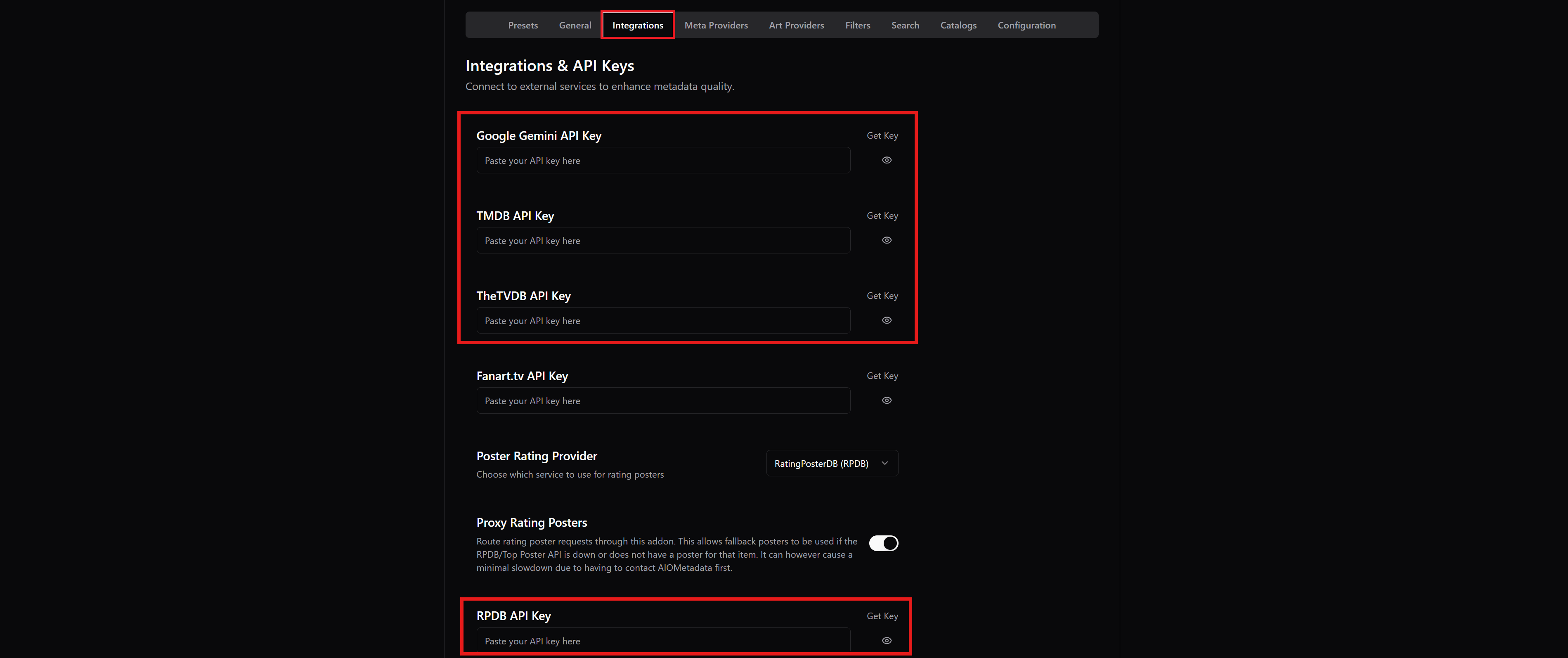
- Go to the “Integrations” tab, and enter the API keys for Gemini, TMDB, TheTVDB, RPDB.
- For RPDB, unless you have an account and a paid subscription with your own API key, you can also use the free standard API Key “t0-free-rpdb” directly.
-
Go to the “Catalogs” tab, and near the “Quick Add” button, you will see the Trakt icon. Click on it and follow the steps to connect your Trakt account.

- If you want some ready-to-use and well-maintained lists, while on the Trakt tab, search for the lists from user “snoak”, and you will be able to import a lot of interesting lists. I have already included some of them in the catalog, but you can add more.
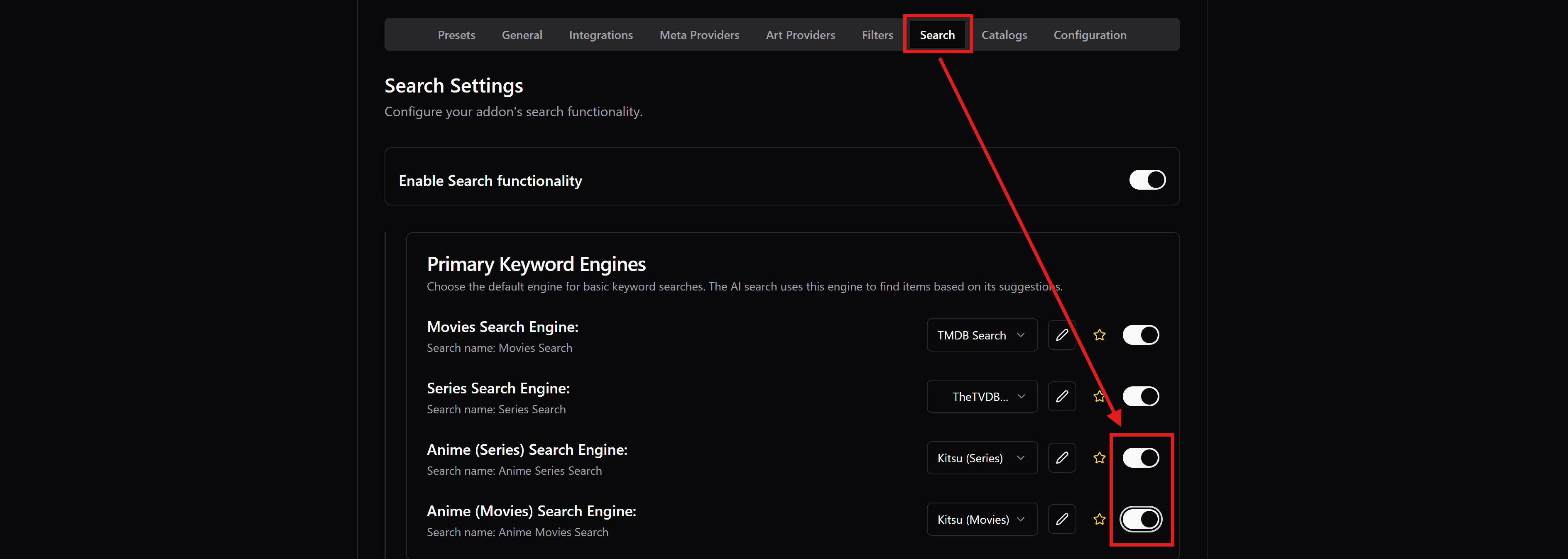
- For Anime users: If you want to enable search for Anime, make sure to go to to the “Search” tab and enable both “Anime Search Engine” switches.
- For other languages: If you want the metadata (descriptions, titles, etc.) to show in a different language than English, go to the “General” tab and change the “Display Language”.

- NOTES:
- If you encounter any issues with Trakt integration on AIOMetadata, it’s probably because Trakt is rate limiting the instance you’re using, or the instance provider has disabled it (if it says “Instance owner has not yet set up the Trakt integration.”). In that case, try to do the AIOMetadata setup with another instance.
- Alternatively, you can leave Trakt integration disabled, and hide the Trakt catalogs on the list (marked with a red Trakt tag on the right) by clicking the green eye icon for each. I know it’s not ideal since you created a Trakt account already, but there’s nothing we can do about it. You can still add other catalogs from the other sources there.
- There are also good alternatives to Trakt if you disable it, both for watch history tracking, and curated catalogs, which you can check out in 🛠️ Additional Stuff.

- Optional: At this point AIOMetadata is ready, but you can keep configuring it however you like, but otherwise the configuration I provided is ready to be used. On the “Catalogs” tab you can add, remove, enable, disable catalogs depending on your preferences.
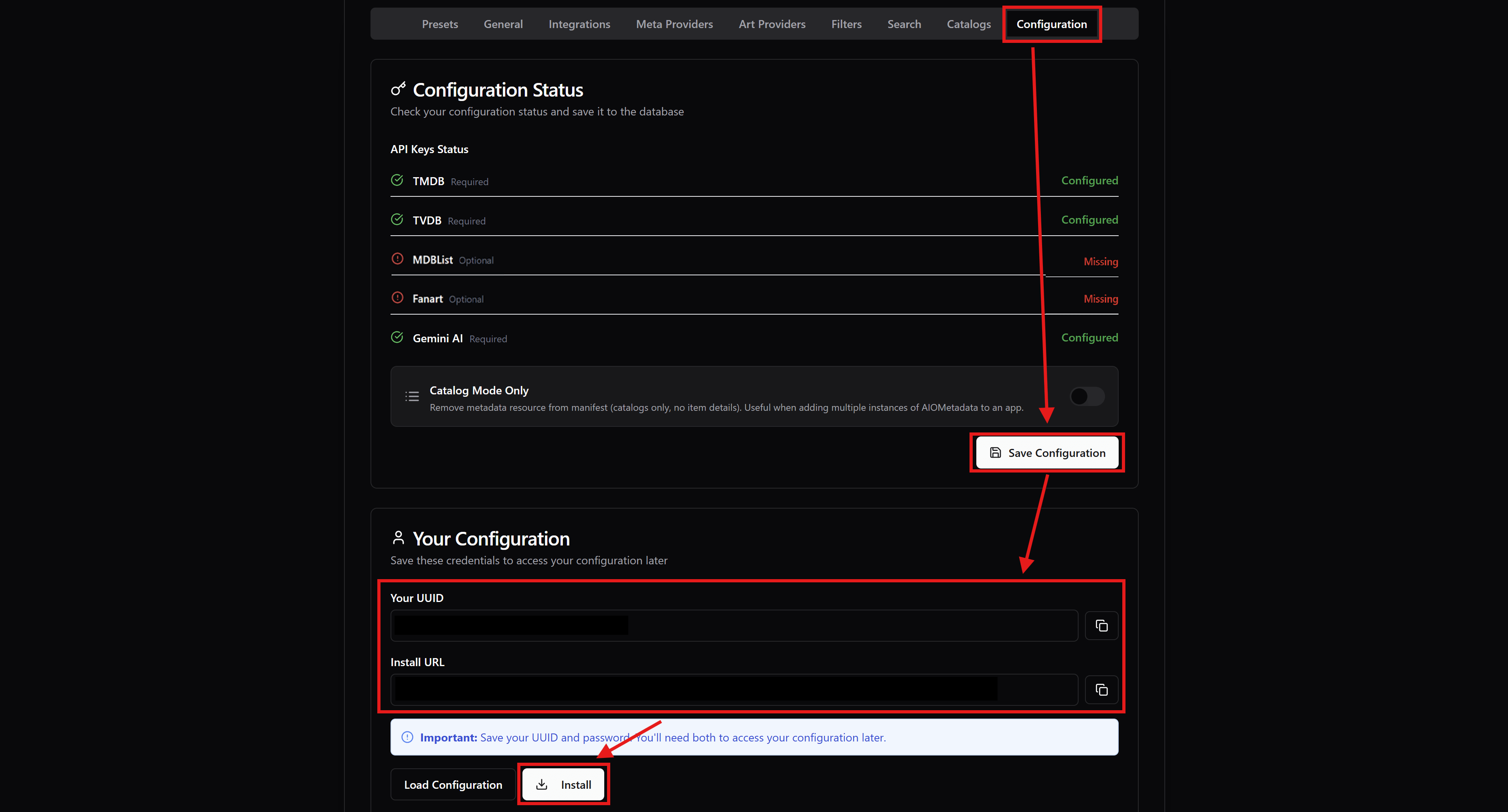
- Go to the “Configuration” tab again and click on “Save Configuration”.
- ALWAYS SAVE IN THIS TAB EVERY TIME YOU MAKE CHANGES LATER.
- Copy and store the UUID that is shown and the Password you set for later to access the configuration again. This is basically your AIOMetadata account.
- Click “Install” and install the addon on Stremio Web (recommended, but you can also install on Stremio app if you want, but make sure you’re signed in to your Stremio account wherever you install it).
- If you get a “AddonsPushedToAPI Max descriptor size reached” error when installing, you probably have too many catalogs on AIOMetadata. Disable some, save the configuration, and try to install it again.
- If you didn’t want to get an API key for Gemini, go to the Search tab and disable AI-Powered Search to be able to save.
NOTES FOR LATER:
- Keep in mind for later that if you change catalog structure in AIOMetadata after you installed it on Stremio, or if you add the CouchMoney lists from Step 6 below, then go to Cinebye, authenticate again with Stremio credentials, and click the Refresh icon to the right of AIOMetadata in the “Manage Addons” section.
