
🤖 6. Personalized & Automated Lists
At this point you are done, YAY!, so you can start enjoying it already OR you can do one more step if you want proper custom lists that are specifically made for you (like Netflix suggestions):
Watchly is a full-blown recommendations addon that provides real Netflix-like suggestions, and multiple dynamic catalogs depending on what you watch and like. Here are the steps to set it up:
- Go to this Watchly instance.
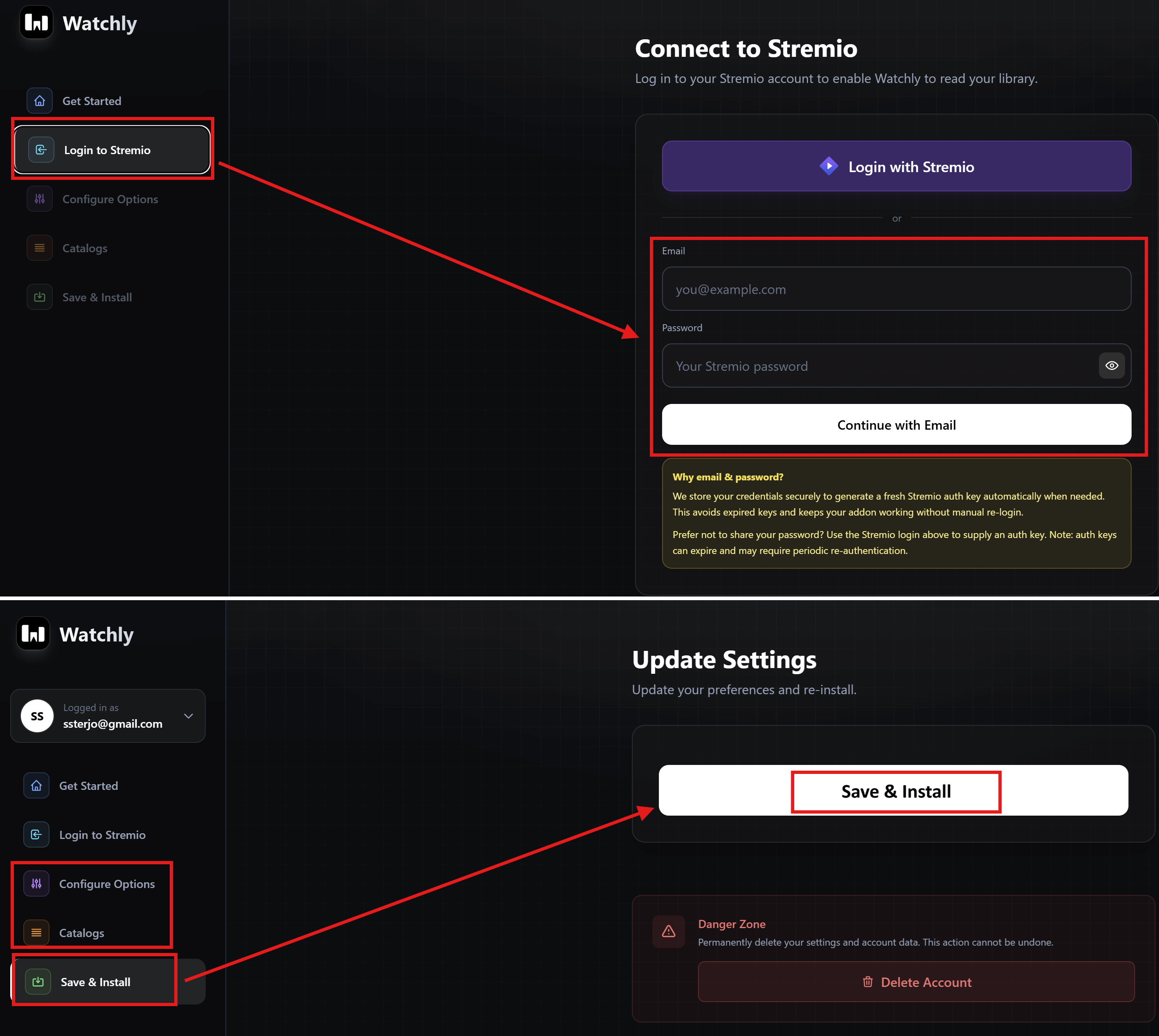
- Click on “Get Started”.
- Login with your Stremio account email and password (recommended), OR click on “Login with Stremio”, sign in to your Stremio account, and click “Accept” to allow Watchly to connect to your account (the second approach may expire in the future and you may need to log in again).
- You will then land on the Watchly “Preferences” page. Configure according to your personal preferences here.
- Scroll down and enter the RPDB, TMDB, Simkl (Optional), and Gemini API Keys in the respective fields.
- Click on “Next: Catalogs” and configure catalogs here also according to your personal preferences.
- Click on “Next: Install” and click on “Save & Install”.
- Click “Install on Web” and install the addon on Stremio.
- Notes:
- If you want these Watchly catalogs to show on top (which you’ll probably want), go to Cinebye again and change the order of the addons by putting Watchly second, after Cinemeta and before AIOMetadata.
- If your Stremio account is new, it will not have a watch history yet, so you may get “Failed to fetch” or similar issues on the Watchly catalogs when showing on Stremio. Don’t worry, they should show up properly once it has enough information to personalize your lists.
Recommended:
Watch Next is a very cool and simple addon that can show similar/related content directly on the page of the current show you’re watching, similar to e.g. Netflix’s “More Like This” feature. It doesn’t need any configuration, it just works as-is once you install it very easily:
- Open this link, click on “Install Add-On”, and install on Stremio. That’s it!
- If it doesn’t work, maybe because you don’t have the Stremio app installed and need to install it manually, then do this:
- Go directly to Addons in Stremio Web or open your Stremio app and go to Addons.
- Click on “Add Addon” and paste this link on the field.
- Click “Add” and that’s it!
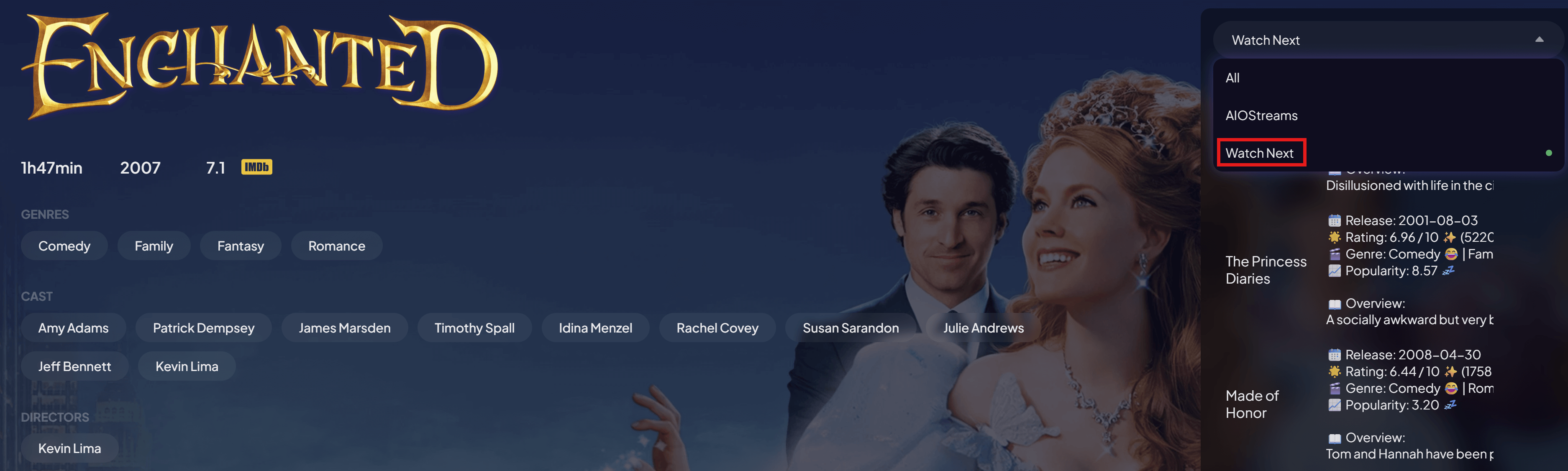
- Now, every time you open a show, beside the AIOStreams tab which will show the available streams for it, there will also be a “Watch Next” tab showing similar/related content that you might like.
Worth Mentioning:
CouchMoney creates personalized Trakt lists, which is a good basic setup, but since Trakt allows only 2 lists for free users, it might be limiting for some.
- Go to CouchMoney and click “Login with Trakt”.
- Follow the steps to connect your Trakt account.
- CouchMoney will create two lists for you based on your Trakt watch history and ratings, which you can customize further if you want on this page.
- Go to your AIOMetadata account and sign in if needed (top right there’s a sign in button) with your AIOMetadata credentials.
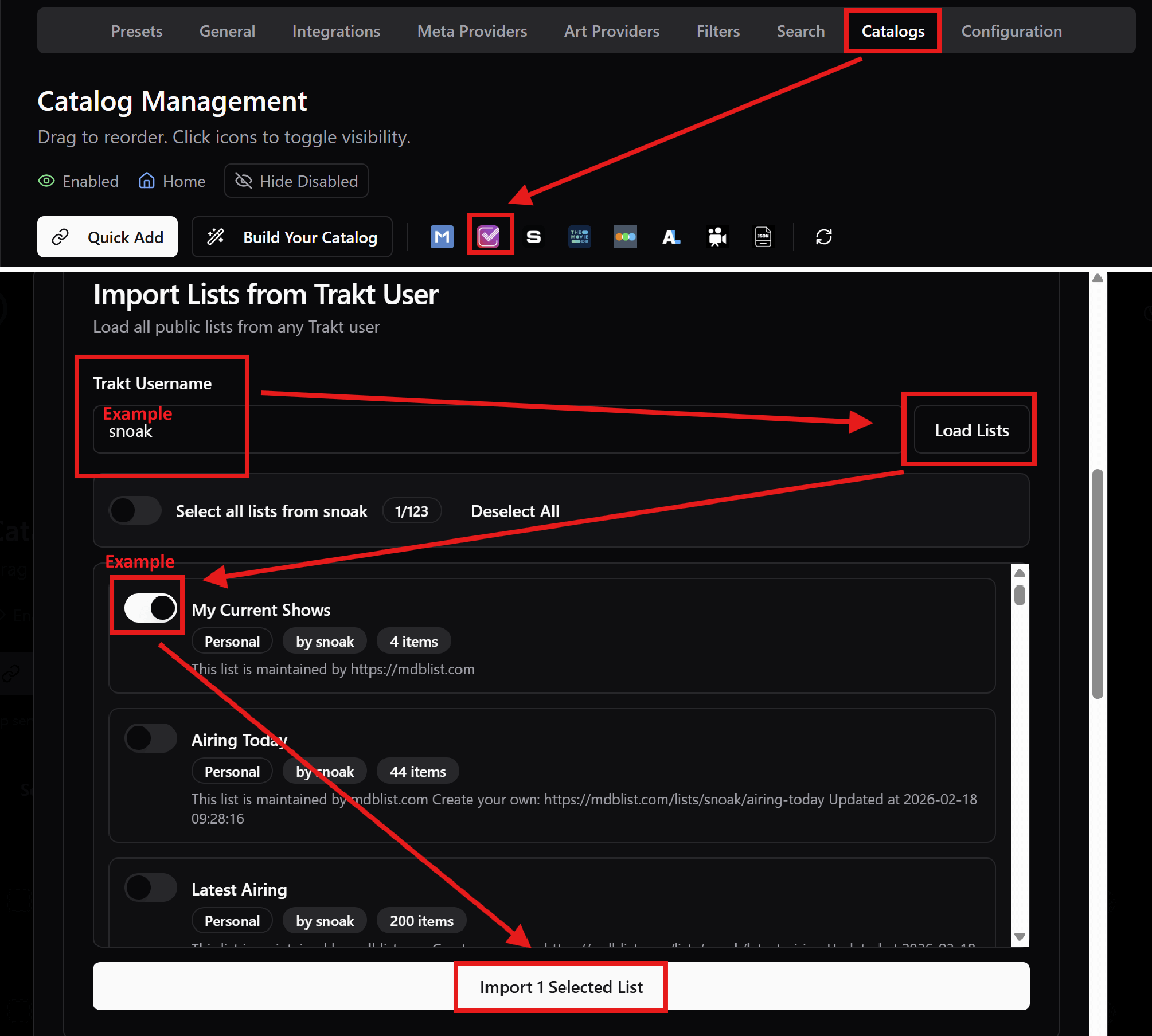
- Go to the “Catalogs” tab and click on the Trakt icon.
- You should already be connected to your Trakt account here, so scroll down to the “Import Lists from Trakt User” section.
- Search for your Trakt username (which you can set/check in your Trakt account settings).
- The lists created by CouchMoney should show up here.
- Add them to your Catalog and order them as you wish.
- Note: As mentioned above, when you change catalog structure in AIOMetadata, go back to Cinebye, authenticate again with Stremio credentials, and click the Refresh icon to the right of AIOMetadata in the “Manage Addons” section.
And now you’re really done! Check out the ❓ Configuration Q&A and 🛠️ Additional Stuff if you want to tweak it further.