
❓ Configuration Q&A
I am including this section for anyone who has any additional questions or is encountering any common issues. Most of this is already in the guide, but a lot of you skip them :), so I have extracted them here for you to find answers quickly:
I installed or removed addons, but nothing changes in Stremio. Am I in the wrong place?
- Make sure you are signed into web.stremio.com when installing or removing addons. Being logged into www.stremio.com (account site) does not automatically log you into web.stremio.com.

I’m getting an error “No addons were requested for streams” when opening content on Stremio.
- This means AIOStreams is not installed or configured correctly.
- Check if you installed it while logged in with your account on web.stremio.com. It should also be showing on Cinebye. Otherwise you installed it without being logged in so log in to web.stremio.com and install it again.
- In AIOStreams go to Addons and check if there are any addons (Torrentio, StremThru, etc.), and they are enabled. If there’s no addons, then you didn’t load the template provided in the guide. Please follow the AIOStreams setup again.
I still see old addons and clutter. How do I “reset” the account cleanly?
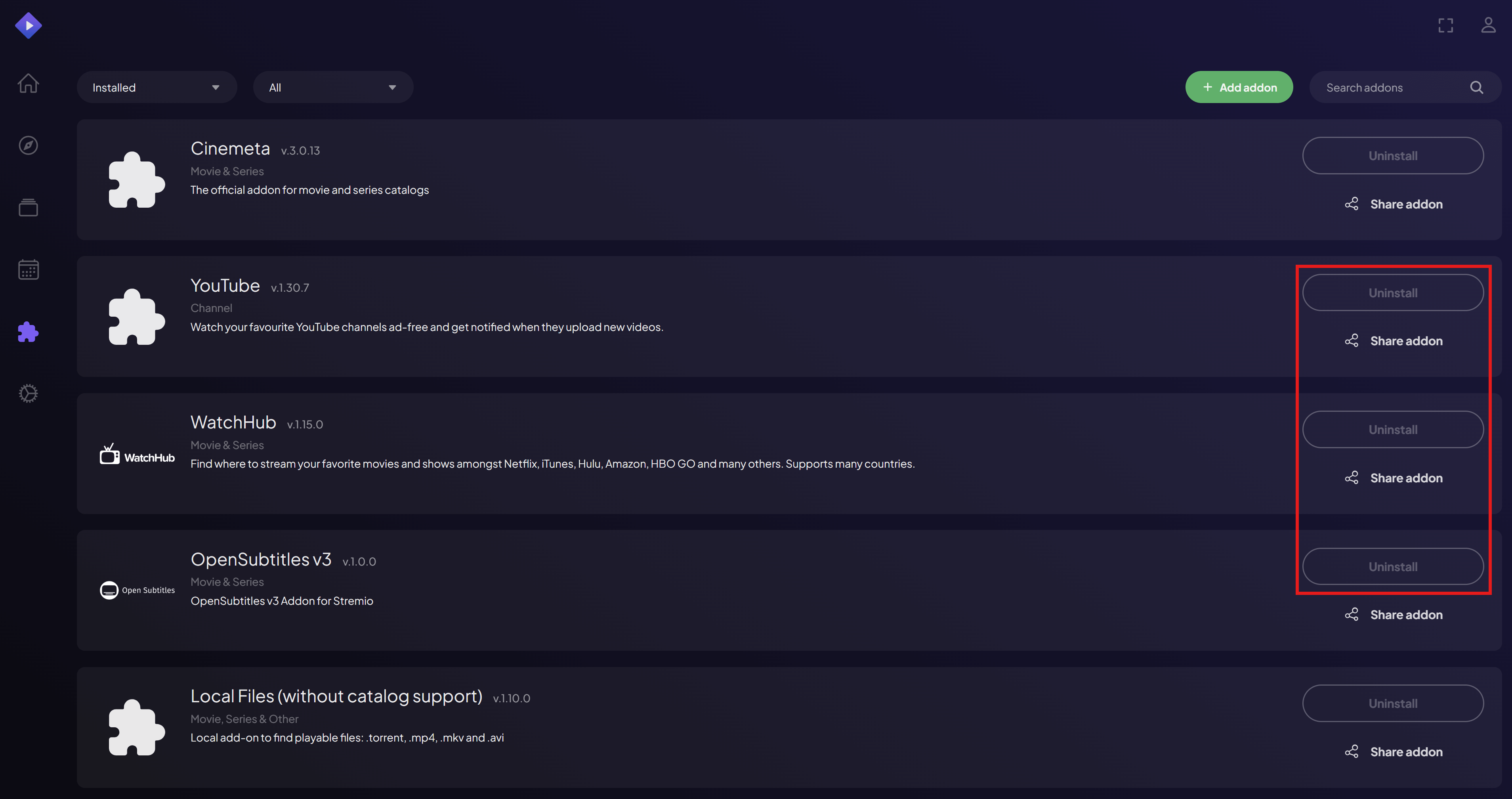
- In Stremio Web: go to Addons and uninstall everything you can.
- Also remove the Trakt Integration addon (it is different from Trakt Scrobbling).
- Cinemeta and Local Files cannot be removed. You patch them via Cinebye.
I am not using a debrid service and I want to stream via P2P torrents directly. What should I change, and what should I expect?
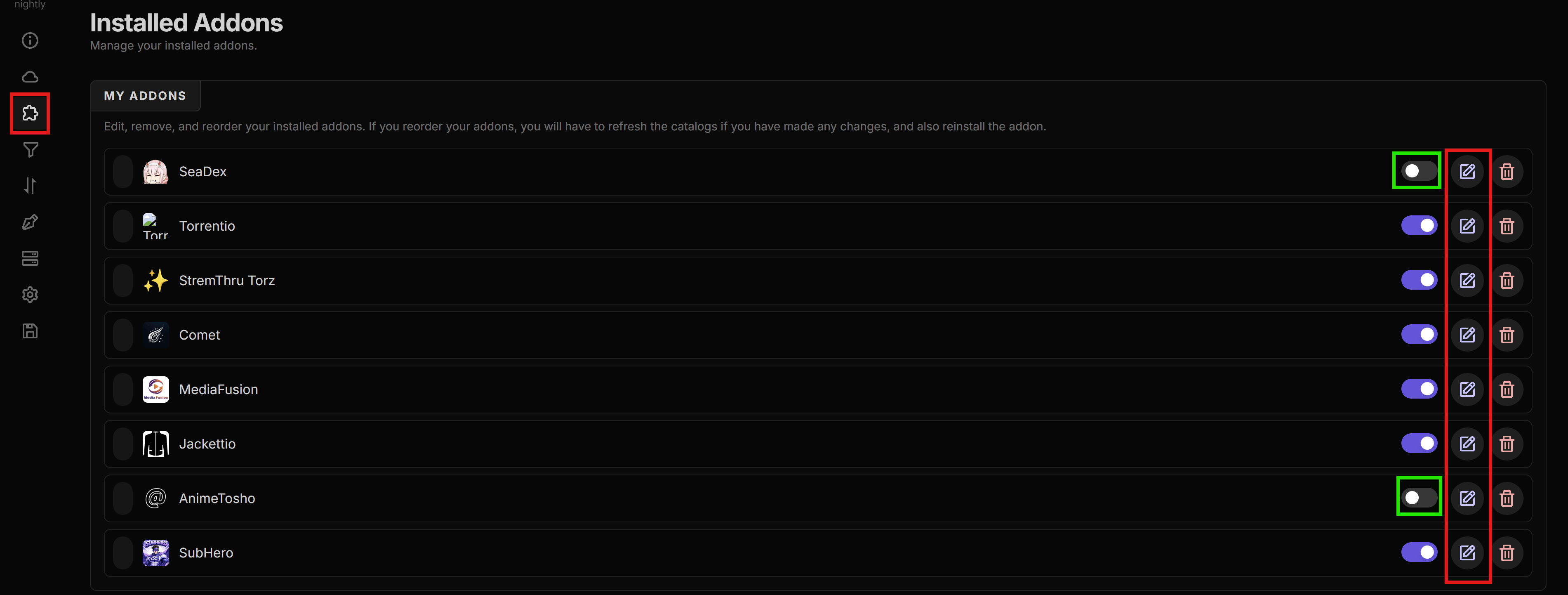
- In AIOStreams → Addons → Installed Addons, disable AnimeTosho, SeaDex, and Jackettio because they do not work without a debrid service.
- You can still get anime results via the other scrapers, but they will be more limited. SeaDex and AnimeTosho usually increase the chances of finding better anime sources.
- When streaming via torrents, keep in mind speeds can be slow, and some links can be unwatchable if there are not enough peers.
- When torrenting, prefer links with a higher peer count (shown next to the P2P label).
I don’t understand what the icons (⚡,⏳,…) on the stream information view mean. How do I read them?
- Go to 🛠️ Additional Stuff to read the descriptions for each icon.
The icons of the stream information view are too plain, I would like more colors to differentiate.
- Go to 🛠️ Additional Stuff on the extended guide to get an alternative colorful template you can use instead.
I want Trakt progress syncing, but I do not want extra Trakt addons.
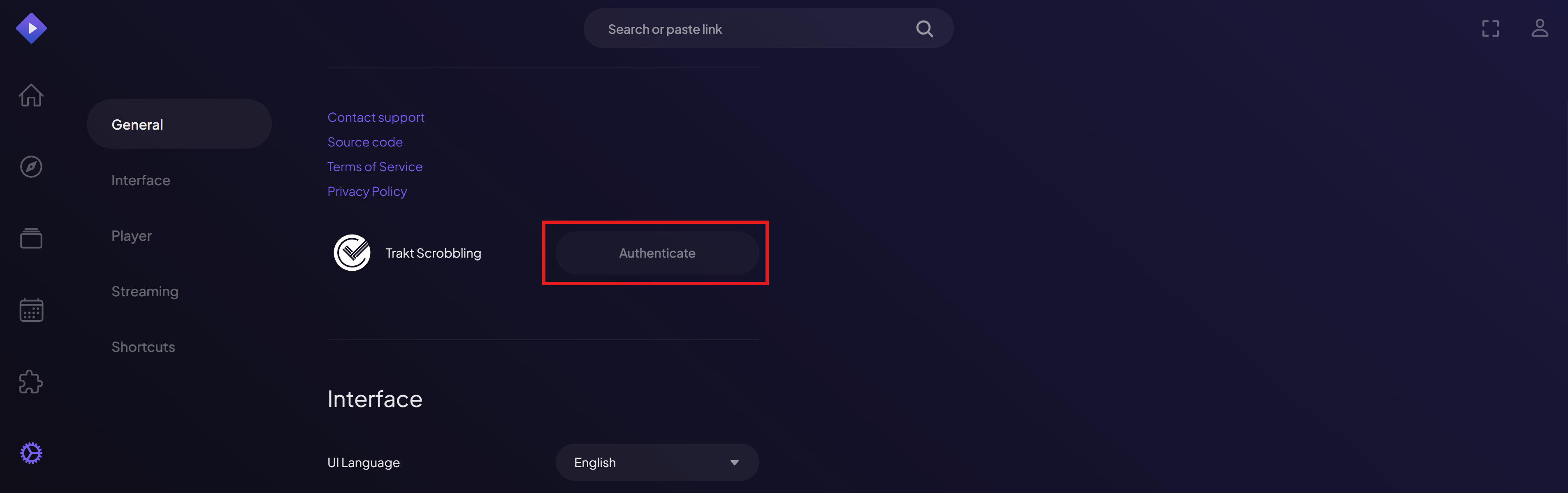
- In web.stremio.com, sign in, and go to Settings and enable Trakt Scrobbling by connecting your Trakt account.
- Then uninstall the Trakt Integration addon from Stremio addons.
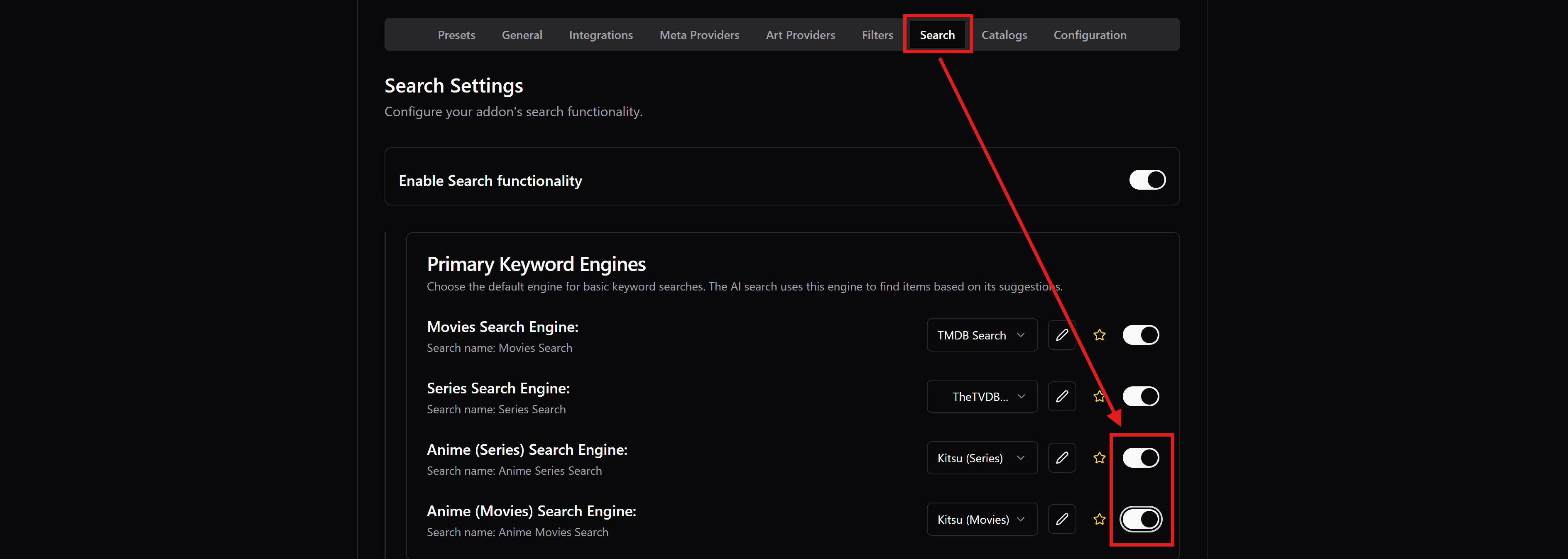
I want Anime sources, but I am not seeing them.
- In AIOStreams: go to Addons → Installed Addons and enable SeaDex and AnimeTosho (they are disabled by default).
- In AIOMetadata: go to Search and enable both Anime Search Engine switches.

I want subtitles in specific languages.
- In AIOStreams: go to Addons → Installed Addons, edit SubHero, and set your subtitle language preferences there.
I don’t understand how the streams shown to me are being sorted.
- Go to 🛠️ Additional Stuff to see the configured sort order.
I need non-English results to appear first in the results list.
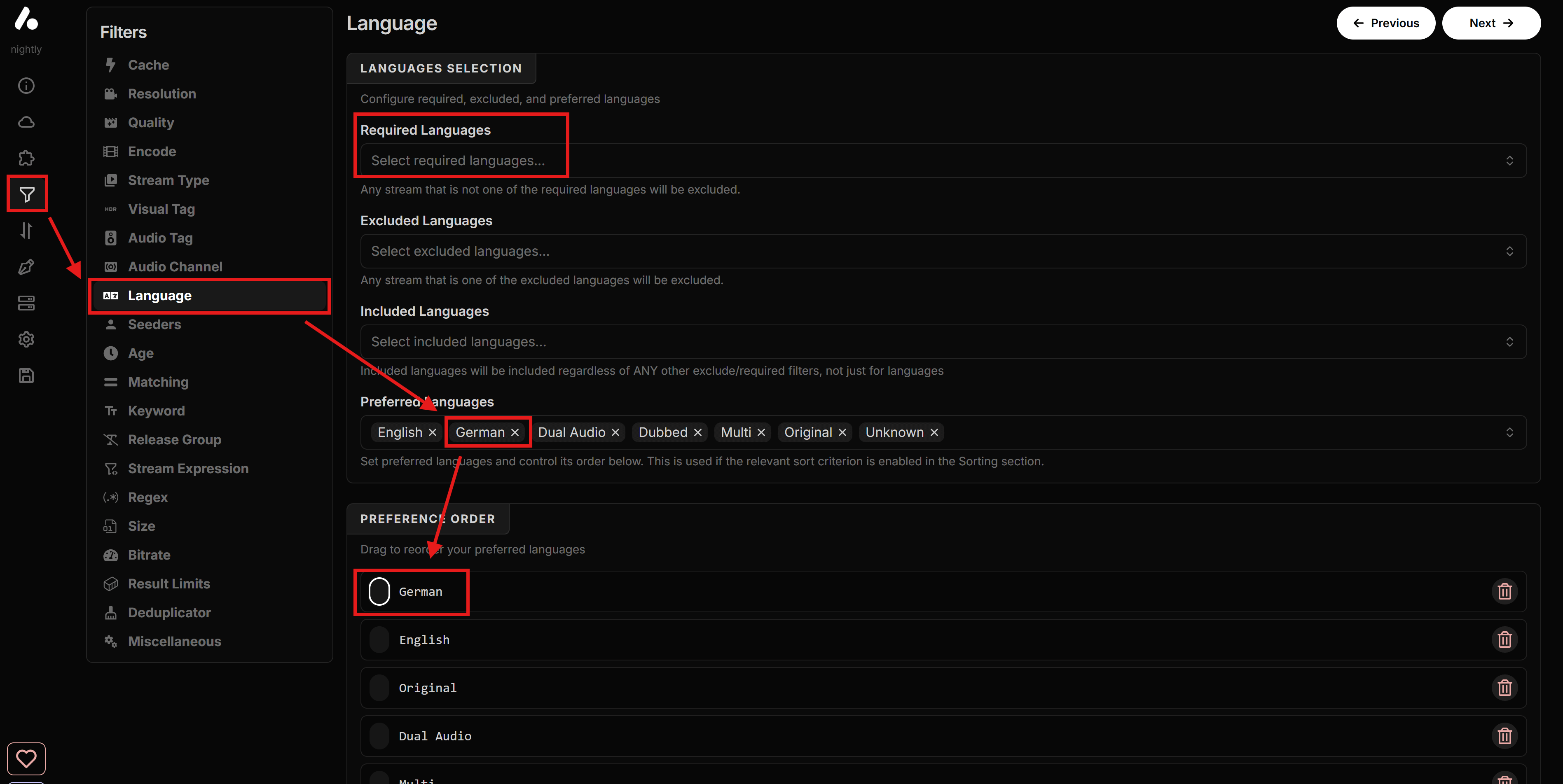
- In AIOStreams: go to Filters → Language.
- Add your language to Preferred Languages.
- Put it first in Preference Order.
- You can also add the language in the Required Languages to ONLY show streams in that language, but keep in mind that streams that might have no language tags at all or tagged as “multi” will not be shown.
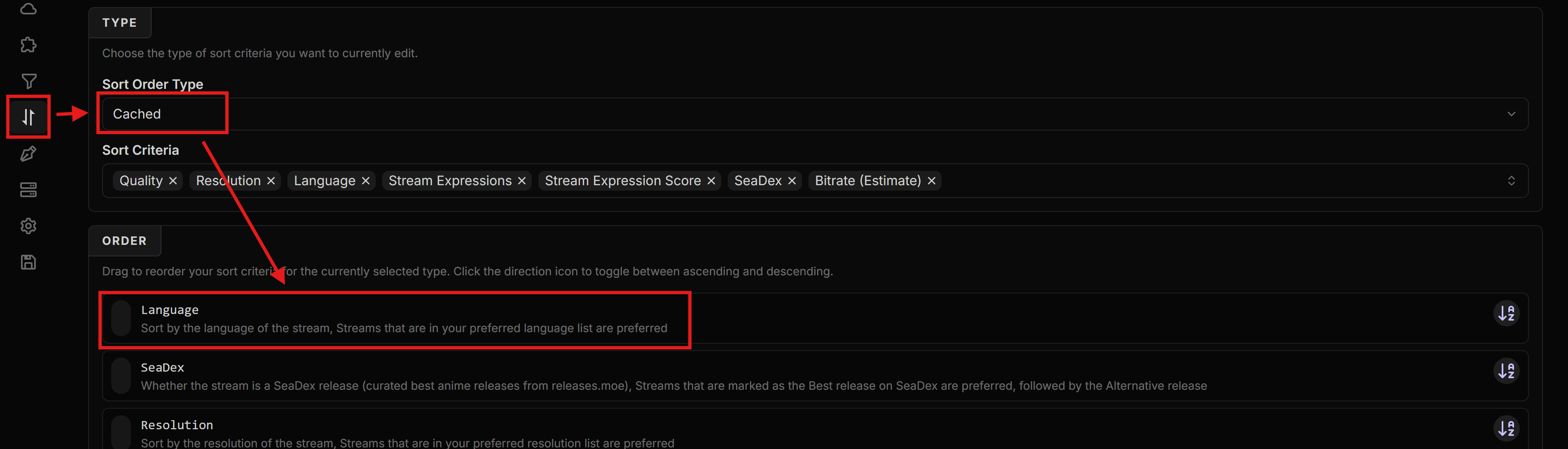
I want my language to be prioritized even before Quality/Resolution.
- In AIOStreams: go to Sorting.
- For Sort Order Type: Cached, move Language to the top (or where you want it).
- Repeat for Sort Order Type: Uncached.
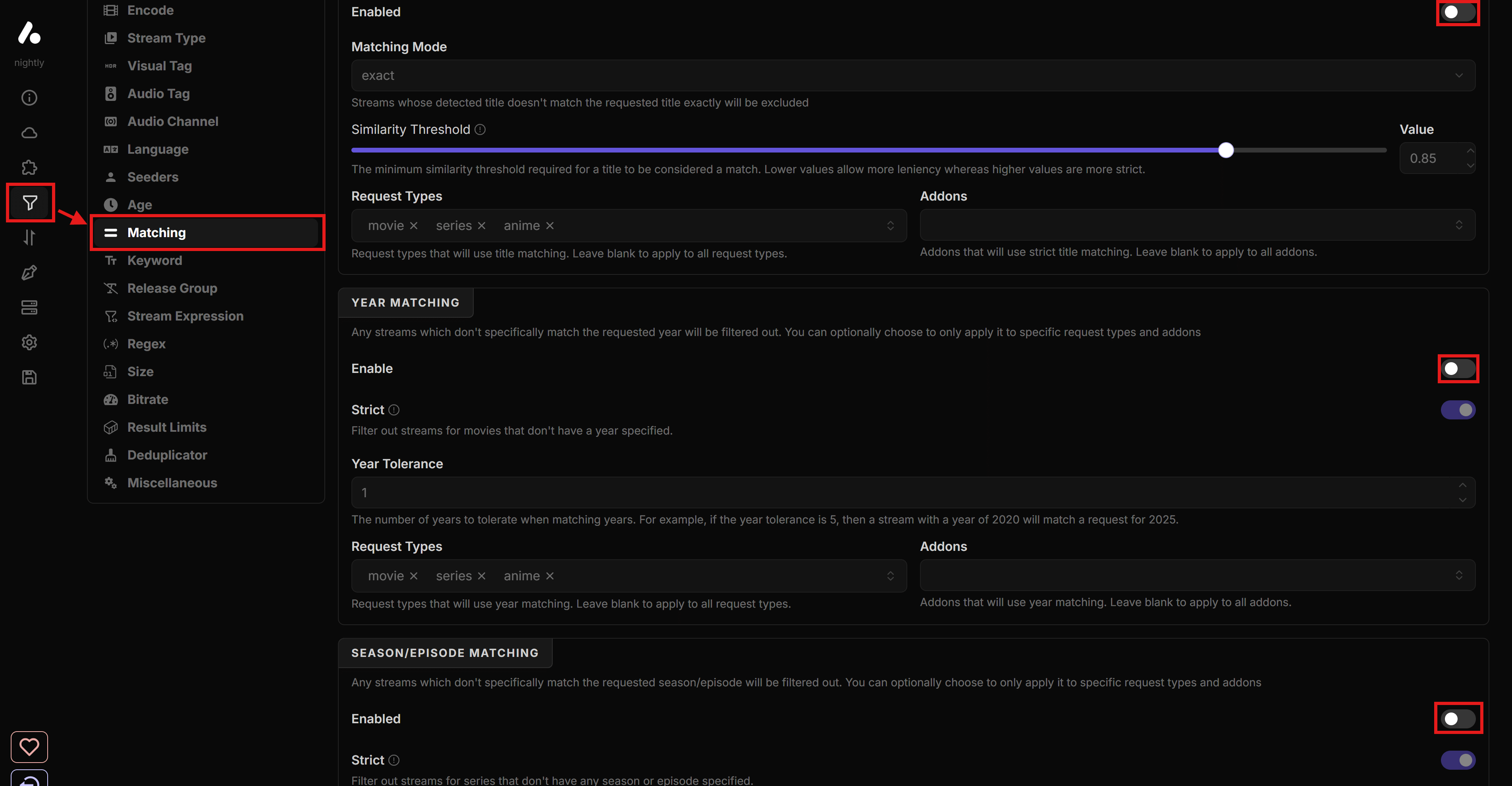
I am not happy with non-English matching. It feels like good results are being filtered out.
- In AIOStreams: go to Filters → Matching and disable matching by turning off the Enable toggle in all three sections:
- Title Matching
- Year Matching
- Season/Episode Matching
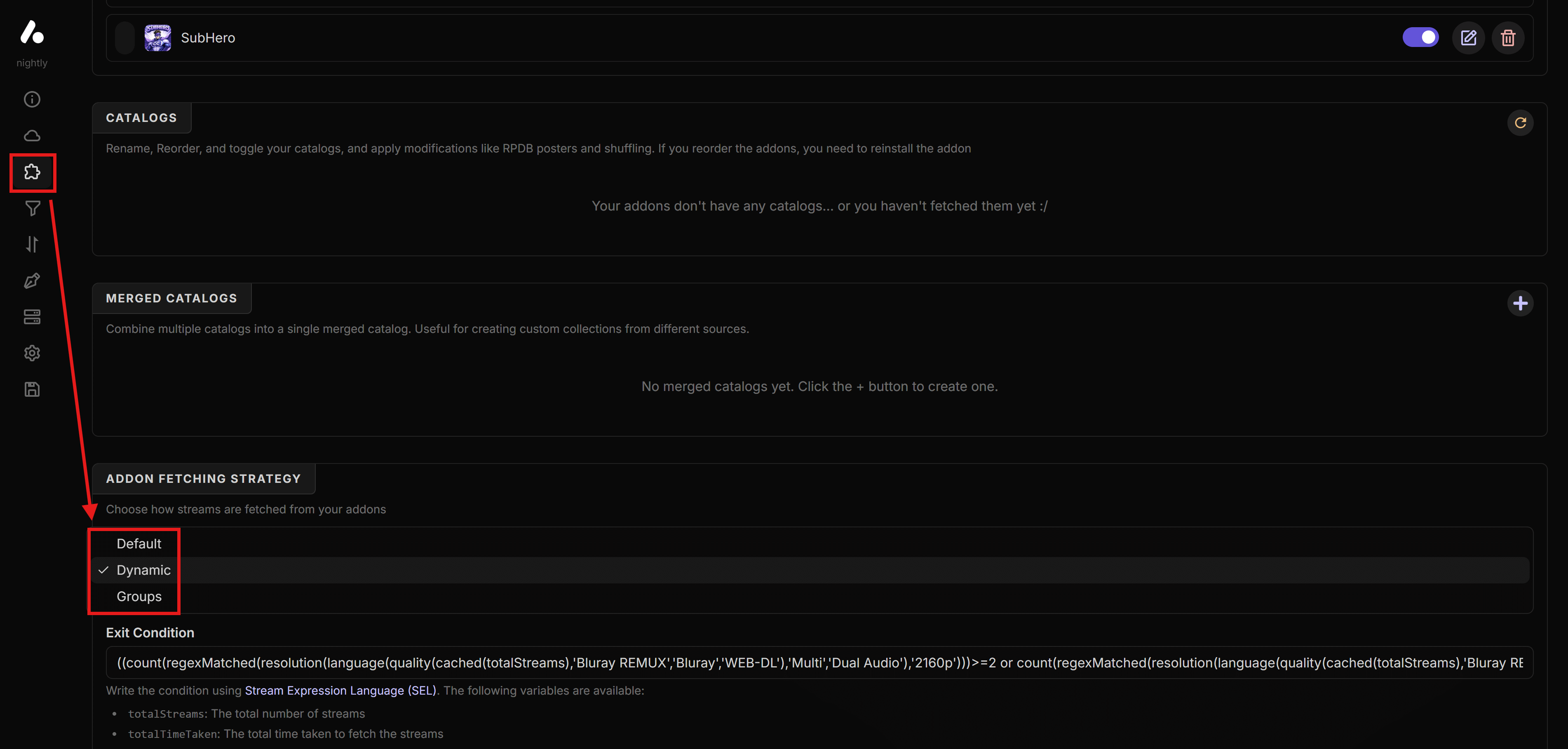
Results are coming in too slowly. How can I speed it up?
- In AIOStreams: go to Addons → Addon Fetching Strategy and try Dynamic, leave the Exit Condition as is, then save your config.
- If you notice it misses good links, switch back to Default.
I feel like I am getting too few good results. What should I change?
- If you set fetching to Dynamic (AIOStreams → Addons → Addon Fetching Strategy), try switching back to Default.
- Make sure you enabled enough scrapers (Torrentio, StremThru, Comet, MediaFusion, Jackettio are mentioned in the guide as the core scrapers).
- Go to 🛠️ Additional Stuff to see the optimizations configured in the AIOStreams template provided in this guide and how to make changes to them.
I cannot save because it says “Jackettio/SeaDex/AnimeTosho requires a debrid service…”.
- If you are not using debrid: disable Jackettio, SeaDex, and AnimeTosho in Addons → Installed Addons, then save again.
- If you want SeaDex/AnimeTosho, you will need a debrid service.
I do not have an RPDB subscription. What key should I use?
- Use the free RPDB key:
t0-free-rpdb(works for both AIOStreams and AIOMetadata integrations as described in the guide).
Titles and descriptions in Stremio are in English. Can I change the metadata language?
- In AIOMetadata: go to General and change Display Language.
I cannot save the AIOStreams configuration and see “Failed to fetch manifest…”.
- This usually means one or more addons are temporarily offline.
- Go to Addons → Installed Addons, disable the problematic addon, and save the configuration so you can continue the guide.
- Later, return to AIOStreams, enable the addon again, and try to save it if it’s back online.
Some catalogs show “Failed to fetch” or appear empty in Stremio.
- This is often caused by Trakt being temporarily down or rate limiting requests.
- Just wait it out, it will work later. No reconfiguration is needed in most cases.
I cannot complete the Trakt integration step on AIOMetadata.
- Trakt has enforced strict rate limits lately, and all public instances are affected.
- If it says “Instance owner has not yet set up the Trakt integration.” when you click the Trakt button, then it means Trakt integration has been disabled by the instance provider. If you still need Trakt, you’re going to need to do the AIOMetadata configuration with another instance.
- If it’s giving errors while integrating, you can try at a later point and hope it works, or do the AIOMetadata setup with another instance.
- Alternatively, you can leave Trakt integration disabled, and hide the Trakt catalogs on the list (marked with a red Trakt tag on the right) by clicking the green eye icon for each. I know it’s not ideal since you created a Trakt account already, but there’s nothing we can do about it. You can still add other catalogs from the other sources there, but it’s outside the scope of this guide.
- There are also good alternatives to Trakt if you disable it, both for watch history tracking, and curated catalogs, which you can check out on 🛠️ Additional Stuff.
I added or changed AIOMetadata catalogs, but they do not show in Stremio.
- Go to Cinebye, authenticate, and then in Manage Addons click the Refresh icon next to AIOMetadata.

I get an error installing AIOMetadata: “AddonsPushedToAPI Max descriptor size reached”.
- You likely have too many catalogs enabled.
- Disable some catalogs in AIOMetadata, Save Configuration, then try Install again.
I’m getting an error “No addons were requested for this meta!” when opening content on Stremio.
- This means AIOMetadata is not installed or configured correctly.
- Check if you installed it while logged in with your account on web.stremio.com. It should also be showing on Cinebye. Otherwise you installed it without being logged in so log in to web.stremio.com and install it again.
- Make sure Catalog Mode Only in AIOMetadata Configuration tab is disabled.
I want Watchly recommendations to show near the top of Stremio.
- Go to Cinebye, authenticate, and then in Manage Addons reorder addons so Watchly is second (after Cinemeta, before AIOMetadata), then click Sync to Stremio.
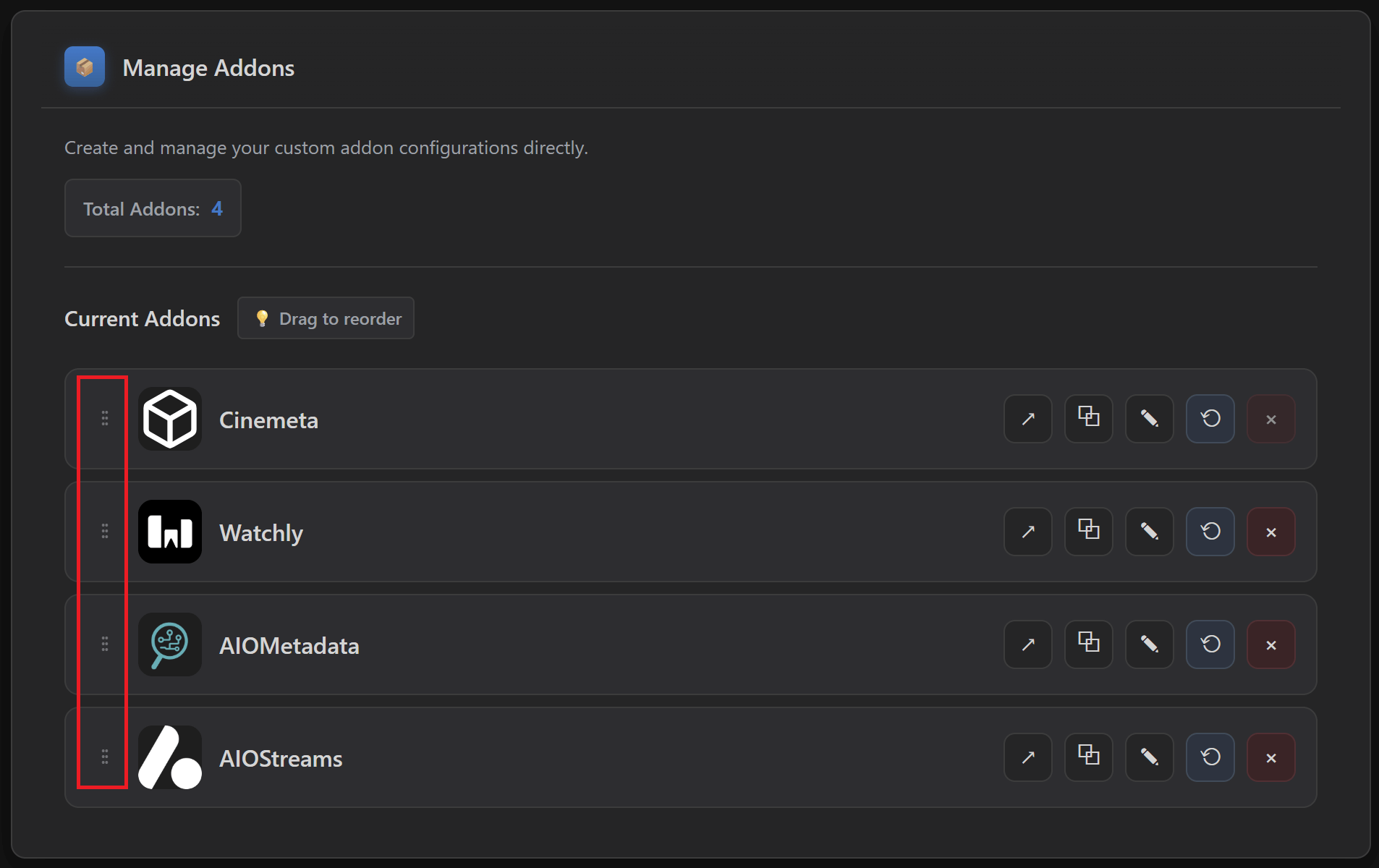
I want more ready-made catalogs inside AIOMetadata.
- In AIOMetadata → Catalogs, click the Trakt button and search for lists from user snoak to import more lists.
- For even more curated catalogs, you can integrate MDBList and get lists from there. Check out how in 🛠️ Additional Stuff.
CouchMoney only created two lists for me. Is that normal?
- Yes, the guide notes Trakt free users are limited (CouchMoney will create two lists). If you want more extensive recommendations inside Stremio, use Watchly.
I used the old “ForTheWeak” (fortheweak.nhyira.dev) AIOStreams/AIOMetadata domains. What do I need to do after the domain migration?
- AIOStreams: redo Step 3 on one of the new instance links and use the updated template.
- AIOMetadata: uninstall AIOMetadata from Addons in web.stremio.com, open the new AIOMetadata instance, sign in with your existing UUID/Password (accounts were migrated automatically), Save Configuration, Install, then go to Cinebye and reorder addons again and Sync.
I forgot where to save changes in AIOStreams or AIOMetadata. What is the one rule?
- AIOStreams: ALWAYS save in Save & Install → Save.
- AIOMetadata: ALWAYS save in Configuration → Save Configuration.