
🔔 Updates
AIOStreams
To do a regular update when a new version of the template for AIOStreams is released on this guide (you can check the version number on the title of the guide), unless described otherwise in specific updates listed further down, you can simply import the template again on your current AIOStreams account (UUID).
Depending on the version of the template you used initially, to avoid any conflicting changes when updating, especially before v2.0 where I had not yet started to track the changes, I would suggest to reset your current configuration before importing the latest template. From v2.0 on, you can check the 📜 Changelog to see whether you’ll need to reset, otherwise just import it on top of your configuration. Also, after you import a template v2.0 (or higher) once, next time there is an update to the template version, you will be notified automatically when logging in to your AIOStreams account and you can decide whether to apply it or not. The changelog will be shown with the notification, so if you decide you want to update, you just click on “Apply Update” and follow the steps.
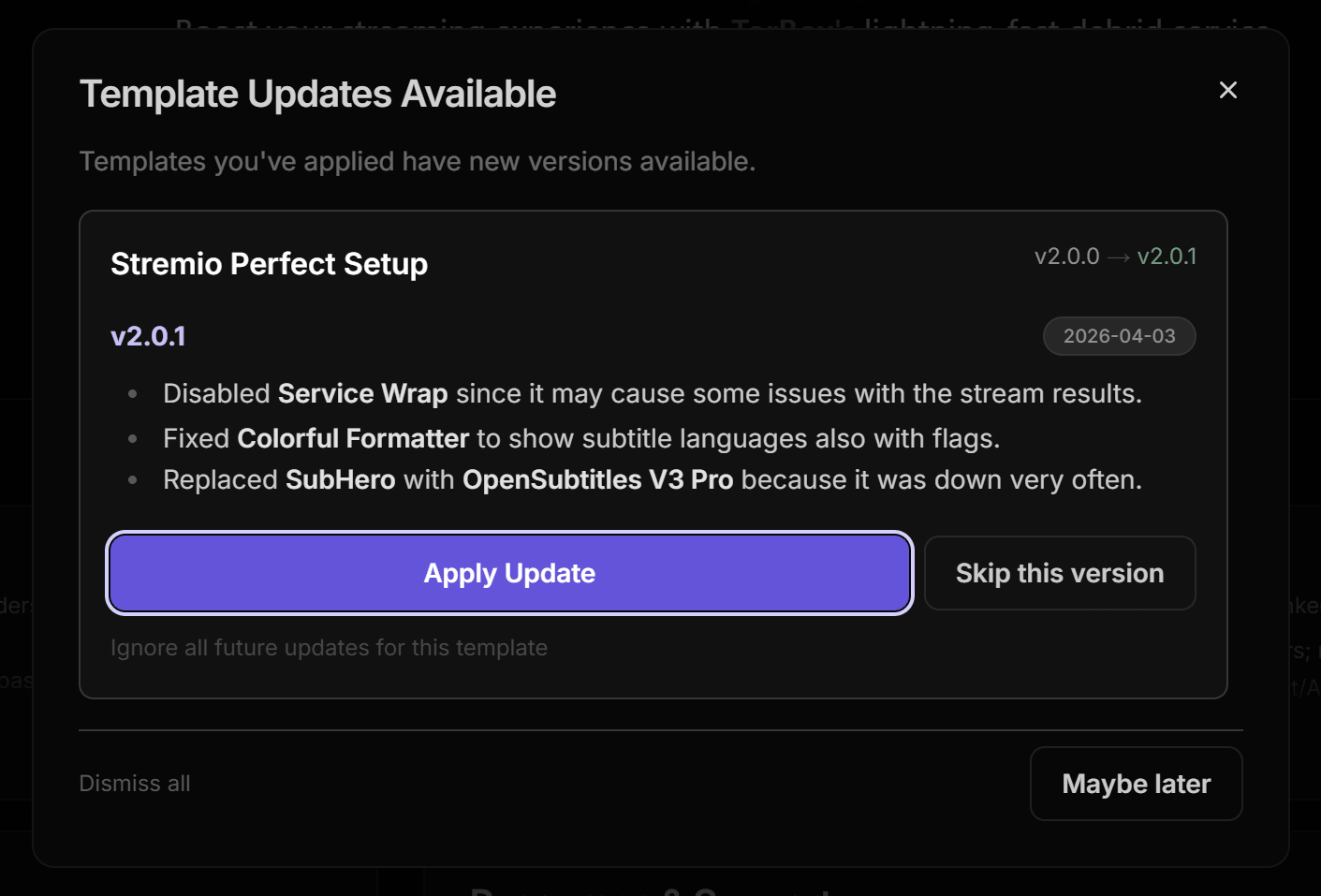
Here’s a quick summary on how to update to the latest AIOStreams template manually:
- Sign in to your AIOStreams instance with your UUID and Password.
- Optional: As mentioned above, if upgrading from a template before v2.0, I suggest to reset your configuration by going to the Save & Install tab, click “Reset Configuration”, and confirm it by clicking “Reset”.
- On the Save & Install tab still, click “Import”, then “Import Template”, and paste the template link and click on “Go”.
- Click “Use this Template Now”.
- On the “Select Services” page that is shown, enable the Debrid services you are already using and click “Next”. If you’re not using any services and want to proceed with the P2P/HTTP setup, click “Skip”.
- On the “Template Options” page, you’ll be able to personalize the configuration to match your preferences, as described on the 📚 3. AIOStreams step.
- On the “Enter Credentials” page, since you’re loading the template over your existing configuration, all API keys needed should already be activated and filled. Otherwise, enter any missing/new ones.
- Click on “Load Template” and the template is loaded.
- 📢 IMPORTANT: If you made any changes to the configuration after you loaded it when you did the setup for the first time, you may need to do them again (e.g. language changes such as subtitles and language preferences, any addon modifications, etc.).
- Click on “Save” on the “Save & Install” tab. No need to install the addon on Stremio/Nuvio again.
AIOMetadata
For AIOMetadata, there’s normally not as many changes as AIOStreams so you shouldn’t need to perform any updates unless explicitly required, so here are the steps if needed:
- Sign in to your AIOMetadata instance with your UUID and Password.
- Go to the “Configuration” tab, click “Import Configuration”, and load the downloaded configuration file.
- 📢 IMPORTANT: If you made any changes to the configuration after you loaded it when you did the setup for the first time, you may need to do them again (e.g. enabled/disabled/added/removed catalogs, changed any anime settings, etc.).
- On the same “Configuration” tab, click “Save Configuration”. No need to install the addon on Stremio/Nuvio again.
-
For Stremio: Keep in mind that if you change catalog structure in AIOMetadata after you installed it on Stremio, you need to go to Cinebye, authenticate again with Stremio credentials, and click the Refresh icon to the right of AIOMetadata in the “Manage Addons” section.*
